Elaborare richieste
Select whether you are using the Legacy interface or the Modernized interface in Resource Sharing for Groups.
Process New For Review requests
Follow the instructions below to process New for Review requests.
To process New for Review requests:
- From the Borrowing Requests category, click New For Review. The initial categories of Not Reviewed and Reviewed are listed.
- Requests under Not Reviewed are requests that have not been seen by your staff. These requests originate from a source outside of your system.
- Requests with a status of Reviewed have been saved by your staff, using the Save For Review feature.
- Click the request ID or Title to display a request.
- Review and confirm the information in the Request Details section.
- If the citation needs to be verified, click the magnifying glass icon, next to the Title, Author or standard number fields, to search WorldCat via Discover Items. A contextual search is launched for the terms selected, and the Results screen appears.
- A My library catalog link will redirect to the library's online catalog URL as set up in the Online Catalog section of the WorldCat Registry module in the OCLC Service Configuration. The following must be entered in the Online Catalog section in order for the My library catalog link to resolve: Online Catalog Direct to ISBN, Online Catalog Direct to ISSN, or Online Catalog Direct to OCLC Number.
- The My library catalog link can take 24 hours to populate.
- Refer to WorldCat Registry, Configure links to your online catalog.
- On the Results screen, you have two options:
- Click the item you want to request. Bibliographic information appears. If applicable, click Apply data, OR
- Fare clic su un collegamento al posseduto o utilizzare un percorso di posseduto personalizzato o un gruppo con profilo OCLC. On the Holdings screen, add lenders to the Lender String, then click Update request.
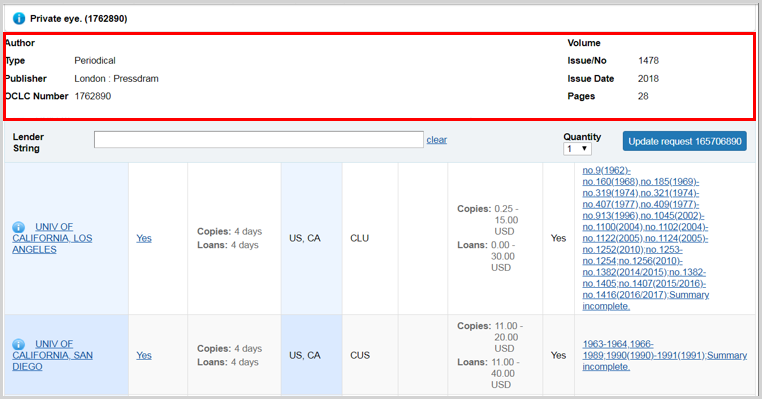
le informazioni sulle citazioni per le richieste di copie verranno visualizzate nella parte superiore della schermata del posseduto e rimarranno durante lo scorrimento dei potenziali prestatori. Confronta le informazioni sul posseduto del prestatore nella colonna Posseduto con le informazioni di citazione del testo di richiesta per essere sicuro che il prestatore disponga del volume esatto necessario per soddisfare la richiesta.
- The request form appears, and the bibliographic data is updated.
- Apply your constant data, and click Send Request.
- A confirmation message appears and the request is updated.
Holdings screen
Display holdings

To display holdings, use one of the following options:
- Click State Holdings, Regional Holdings, or All Holdings.
- State Holdings: Holdings within your state displayed in alphabetical order by institution name.
- Regional Holdings: Holdings from states or provinces that border your state. Bodies of water are not considered when determining borders. Your institution's state or province is listed first, followed by other states or provinces in alphabetical order.
- All Holdings: Your institution's state or province is listed first, followed by other states or provinces in alphabetical order.
Note: A line separates holdings for each state and province. Within each state or province, holdings are listed alphabetically by institution name
- To display holdings from a Custom Holdings Path or OCLC profiled Group, select that option from the Filter by drop-down list. Click Go to see results based on the selected filters. See Filter holdings to build a lender string for more information.
Filter holdings to build a lender string
When viewing holdings for an item, you can filter the list of holdings to assist in building a lender string. If you select both a Custom Holdings Path and a year or volume, the lender string will automatically populate with libraries from the first section of the display.
Filter by Custom Holdings Path
You can filter holdings by a custom holdings path when the item requested is a book or other monograph as well as for copy requests where:
- The patron did not specify the year or volume.
- The holding libraries do not specify their year or volume-level holdings.
- Select a custom holdings path from the drop-down list.
- Click Go. The results list identifies the group of the holding library in the Group column. Groups are also delineated by a heavy gray line.
- If you select both a Custom Holdings Path and a year or volume, the lender string will automatically populate with libraries from the first section of the display.
- Click Yes in the Supplier column to add lenders to the string. You can add up to 15 lenders from the results list.
Nota: i percorsi di posseduto personalizzati che contengono gruppi con profilo possono essere applicati completamente solo tramite automazioni configurate in Gestione richieste automatizzate. Se il percorso di posseduto personalizzato è stato applicato manualmente, viene visualizzato un avviso. Per creare una stringa prestatore parziale dal percorso dei posseduti personalizzato corrente che non includa i simboli del gruppo con profilo, fare clic su OK. Fare clic su Annulla per chiudere questa finestra e instradare manualmente la richiesta all'automazione oppure selezionare un percorso di posseduti personalizzato diverso. Per ulteriori informazioni, vedere Percorso di posseduto personalizzato.
Filter with Year and Volume
When viewing holdings for a journal or other periodical, you can filter the list of holdings by year or year and volume. This data is populated from the lending library's local holdings record or knowledge base holdings.
- Enter a year in the Year field
Or
Enter a year in the Year field and a volume in the Volume field. - Fare clic su Vai.
- The results list is split into three sections, delineated by a heavy gray horizontal line:
- Libraries that hold the year/volume
- Libraries where local holdings are not available
- Libraries that do not hold the year/volume
- If you select both a Custom Holdings Path and a year or volume, the lender string will automatically populate with libraries from the first section of the display.
- The results list is split into three sections, delineated by a heavy gray horizontal line:
- Click Yes in the Supplier column to add lenders to the string. You can add up to 15 lenders from the results list. A lender string will be added based on libraries that hold the year/volume.
Holdings screen view
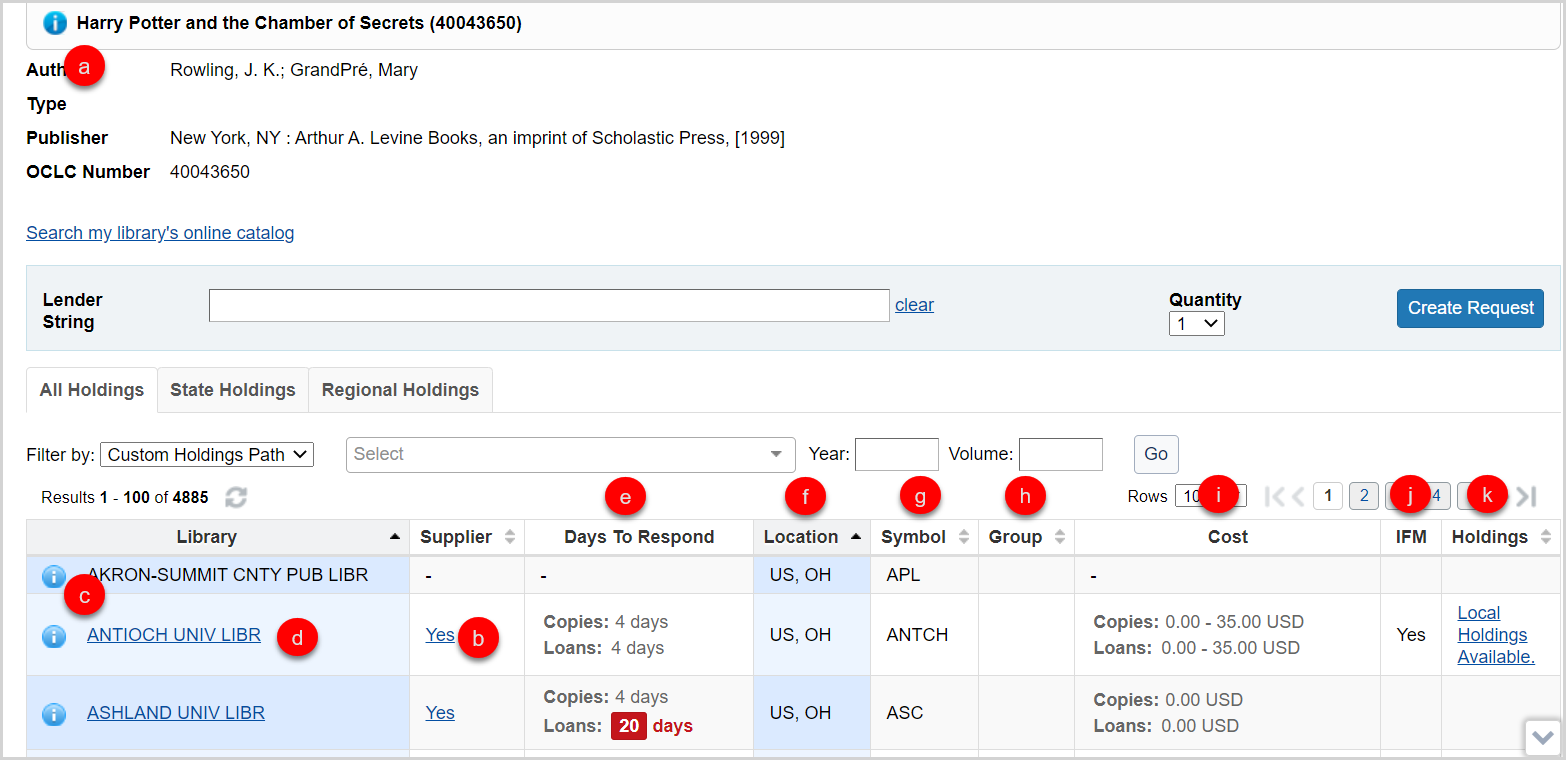
On the Holdings screen, you also have several options:
- Hover your cursor over the information icon (
 ) next to the title of the requested item to see brief bibliographic data.
 - Click Yes (or anywhere in the Yes box) in the Supplier column to add a Supplier to your lender string.
- Once a lender has been added to the lender string, the hyperlink in the Supplier column will no longer be clickable. If a lender is removed from the lender string, your ability to click on Yes in the Supplier column is restored. This selection status will be maintained as you move through all holdings lists.
- Yes displays if the library is a current supplier. If they are not, a dash displays in the Supplier column.
- Click the information icon (
 ) next to the library’s name to go the OCLC Policies Directory and confirm a lender’s policies. The OCLC Policies Directory for the lender will open in a new window.
 - Click the library name to go to the library’s online catalog.
- This link is maintained in the WorldCat registry. For information about configuring your OPAC to display to other libraries and provide deep links to a specific OCLC number or other identifiers, see WorldCat Registry, Configure links to your online catalog.
- The following must be entered in the Online Catalog section in order for the OPAC link to resolve: Online Catalog Direct to ISBN, Online Catalog Direct to ISSN, or Online Catalog Direct to OCLC Number.
- This link is maintained in the WorldCat registry. For information about configuring your OPAC to display to other libraries and provide deep links to a specific OCLC number or other identifiers, see WorldCat Registry, Configure links to your online catalog.
- View suppliers’ Days To Respond. The Days to Respond indicates the number o fdays the library needs to respond to copy and loan requests.
- If an item is Held by your library, you will see the
 icon at the top of the Holdings screen, indicating that your library has a holding set on that item in WorldCat. You will also see this icon on the top of the Request work form.
- If an item is Held by your library, you will see the
- View the suppliers Location, which displays abbreviations for the country, and state or provence.
- La colonna Simbolo mostra l'identificativo OCLC dell'istituto.
- La colonna Gruppo viene compilata quando si filtra in base a un percorso di posseduto personalizzato per mostrare quale dei gruppi di posseduto personalizzato contiene un potenziale prestatore.
- The Cost column indicates what the library charges for copies and loans as entered in the the OCLC Policies Directory.
- The IFM column will indicate Yes if the library participates in Interlibrary Loan Fee Management.
- View suppliers' Holdings information. This data is populated from the lending library's local holdings record or knowledge base holdings. If the information has been provided by the library, the column will display Local holdings available or a summary statement of specific volumes and issues held.
- Click on the text in the column to view additional holdings details.
- The resulting Holdings screen will list the Collection and Coverage for the knowledge base holding.
- Local Holdings Records will list the Format, Location, and Holding information.
- The coverage information displayed in the Holdings information sometimes comes from the embargo_info field of the KBART file in the WorldCat knowledge base. See Embargo and moving wall of coverage for more information.
The citation information for copy requests will display at the top of the Holdings screen and will remain as you scroll through potential lenders. Compare the lenders holding information in the Holdings column to the citation information of the copy request to be sure the lender has the exact volume needed to fulfill the request.
- Click on the text in the column to view additional holdings details.
View Holdings details
If the information has been provided by the library, electronic serials display the exact coverage statement from the WorldCat knowledge base and a Local Holding Record (LHR) summary displays for print serials in the Holdings column.
Click on the summary text in the Holdings column to view additional details about the WorldCat knowledge base or LHR holdings for the title.
- The resulting Holdings detail screen will list the Collection and Coverage for the knowledge base holding.
- Le dichiarazioni di copertura vengono visualizzate nella colonna Posseduto per ogni singola collezione della knowledge base e non vengono deduplicate se il posseduto appare in più collezioni. Dopo aver fatto clic su una dichiarazione di copertura, la schermata dei dettagli del posseduto risultante elencherà il nome e la copertura di ogni collezione della knowledge base contenente il periodico.
- Local Holdings Records will list the Format, Location, and Holding information.
Note: The citation information for copy requests will display at the top of the Holdings screen and will remain as you scroll through potential lenders. Compare the lenders holding information in the Holdings column to the citation information of the copy request to be sure the lender has the exact volume needed to fulfill the request.
Process Open Access requests
Receive items (from in Transit status
Renew item (from Received status)
Seguire le istruzioni seguenti per rinnovare un elemento della richiesta.
Per rinnovare un item:
- Nella categoria Richieste di prestito, fare clic su Ricevute.
- Fare clic sull'ID richiesta o sul titolo per visualizzare una richiesta.
- Immettere una data di scadenza desiderata.
- Fare clic su Rinnova elemento.
Attenzione: quando si suggerisce una data di scadenza, assicurarsi di consultare le politiche di rinnovo della biblioteca del prestito scorrendo il modulo di richiesta verso il basso e facendo clic sull'icona del punto interrogativo (
 ) per aprire il profilo della directory delle politiche della biblioteca.
 - Viene visualizzato un messaggio di conferma e la richiesta viene visualizzata in Richieste di prestito > Ricevute > Rinnovo richiesto.
Nota: le etichette possono essere utilizzate per tenere traccia delle richieste e visualizzate nelle code di rinnovo del destinatario del prestito. Vedere Etichette per ulteriori informazioni.
Se la biblioteca che effettua il prestito accetta la richiesta di rinnovo, determinerà la nuova data di scadenza. Se è stata selezionata la compensazione della data di scadenza dell'utente, la data di compensazione verrà visualizzata all'utente in Il mio account e nelle notifiche ricevute. Per ulteriori informazioni sulla compensazione della data di scadenza utente, vedere Gestione richieste utente.
Se il prestatore rifiuta la richiesta di rinnovo, la data di scadenza originale rimarrà.
Mark a request as Lost
Se un documento ricevuto risulta mancante, marcare la richiesta come Perduta per avvisare la biblioteca che effettua il prestito.
Per contrassegnare un documento come smarrito:
- Nella categoria Richieste di prestito, fare clic su Ricevute.
- Gli elementi possono essere contrassegnati come Persi dalle code Ricevuti/In uso, Richiesto rinnovo, Approvato, Rinnovo negato, Scaduto e Richiamati.
- Fare clic sull'ID richiesta o sul titolo per visualizzare una richiesta.
- Selezionare Perso nella schermata dei dettagli della richiesta.
Lo stato della richiesta viene aggiornato a Persa e la richiesta viene spostata nella coda Ricevuta ma Mancante sia per la biblioteca prestatrice che per quella che effettua il prestito.
Se l'item è stato recuperato, restituirlo o rinnovarlo. Per ulteriori informazioni, vedere Restituire articoli.
Unfilled requests
Respond to conditionals from lenders (from Produced status)
Seguire le istruzioni seguenti per rispondere alle condizionali.
Per rispondere alle condizionali:
- On the left navigation, click Borrowing Requests.
- Fare clic su Con riserva.
- Nella schermata Con riserva, rivedere la colonna Condizioni per visualizzare le condizioni della biblioteca che effettua il prestito.
- Click the request ID or Title to display a request.
- Se il prestatore ha richiesto termini alternativi, come un aumento del costo massimo o l'uso di IFM e l'utente accetta i termini, aggiornare tali dettagli all'interno della richiesta. Eseguire questa operazione prima di fare clic su Sì; in caso contrario, si applicano ancora i termini della richiesta di prestito originale.
- Rispondere alla condizione del prestatore con Sì, No o Annulla richiesta.
- Se si fa clic su Sì, la richiesta torna alla biblioteca che effettua il prestito e viene visualizzata in Richieste di prestiti > È possibile fornire? > Condizioni accettate.
- Se si fa clic su No, la richiesta viene inoltrata al prestatore successivo nella stringa prestatore.
- Facendo clic su Annulla richiesta, la richiesta viene annullata.
- Viene visualizzato un messaggio di conferma.
 ) accanto al titolo dell'elemento richiesto per visualizzare brevi dati bibliografici.