Passa al contenuto principale
Supporto OCLC

Integrare le informazioni sulla fattura con il sistema finanziario implementando WMS Accounting System Invoice Connector

Scoprite come implementare il connettore per le fatture del sistema contabile per sincronizzare le informazioni sulle fatture tra WorldShare Acquisitions e il vostro sistema finanziario esportando e importando un singolo file di fattura.

Overview

Potete integrare le informazioni sulle fatture da WMS al vostro sistema finanziario esportando un singolo file di fatture pronte per il pagamento su un server di scambio file OCLC. Questo file include tutti i dati necessari per l'integrazione con un sistema finanziario, tra cui:

  • Dati della fattura
  • Dati dell'ordine
  • Dati dell'articolo dell'ordine
  • Dati sulle risorse
  • Dati del fornitore

Questo singolo file di fatture può essere recuperato utilizzando il vostro account di scambio file OCLC, trasformato nel formato necessario e importato nel vostro sistema finanziario.

Once you have retrieved the exported file and transferred its contents to your financial system, you can also provide a file of payment information back to an OCLC file exchange server. This payment information can include not only the specific invoices that you want to mark as paid, but also updates to specific fields on the invoice.

 Nota: per attivare questo servizio è previsto un costo minimo di implementazione una tantum. Contattare l'assistenza OCLC per acquistare questo servizio per la propria istituzione.

Note importanti sul connettore di fattura

 Caution: Please carefully review the points below when gathering information and deciding if the Invoice connector is right for your institution.

  • La vostra istituzione dovrà accedere all'account SFTP di OCLC. Per ulteriori informazioni, consultare Download di file con un client SFTP open-source.
  • La vostra istituzione dovrà scrivere una procedura per prelevare i file delle fatture dal server SFTP di OCLC.
  • Il file di esportazione della fattura viene emesso come file JSON. Potrebbe essere necessario riformattarlo per adattarlo alle esigenze del vostro sistema finanziario.

     Note: Financial systems may require CSV, XML, tab-delimited, or another file type. 

  • Il nome del file di output della fattura non può essere specificato dall'istituzione, poiché si tratta di un nome di file standard generato da OCLC.
  • I file rimarranno al loro posto fino a quando il processo di eliminazione dei file di OCLC non li rimuoverà. Questo processo dura 90 giorni ed è determinato dal team DEAP.
  • There can only be one invoice file export job, and it can not run automatically more than once per day. Unless the job has been run manually, there should only be a max of one file per day.
  • Non viene generato un file se non vengono emesse fatture. Tuttavia, ogni giorno verrà inviata una notifica via e-mail che indica se sono state esportate delle fatture.
  • The only invoices included in the export file are those that are flagged as Ready to Pay. If you don't want an invoice to be exported, use the Pay option on the invoice record in WMS.
  • È necessario generare un file di risposta a pagamento e inviarlo nuovamente al server SFTP di OCLC.
  • It is recommended that you thoroughly test the Invoice connector integration with test data and a test budget before using it in production, including manually running the invoice export job so that you know when a file is going to be generated.

Integrare il connettore di fatturazione del sistema contabile WMS

1. Configurare le informazioni sul fornitore

Some vendor fields are included as part of the invoice export jobs. The fields are available in a vendor's profile in WMS under the local identifiers accordion. For more information, see Edit a vendor. The following vendor fields are included in the export file and may need to be entered prior to using the invoice export:

  • ID sistema contabile
  • Numero di registrazione GST
  • Numero di registrazione PST

2. Configurare il lavoro di esportazione delle fatture

Per abilitare l'esportazione dei dati delle fatture a un server di scambio file OCLC, è necessario prima configurare un lavoro automatico di esportazione delle fatture. È possibile creare un solo lavoro di esportazione delle fatture per la propria istituzione.

  1. Nella navigazione a sinistra, fare clic su Lavori automatici > Lavori per aprire la schermata Lavori.
  2. Fare clic su Nuovo lavoro per aprire la finestra di dialogo Nuovo lavoro.
  3. Nella finestra di dialogo Nuovo lavoro:
    1. Inserire un nome per il lavoro nel campo di testo Nome.
    2. Selezionare Esportazione fattura dall'elenco a discesa Tipo.
    3. Fare clic su Salva. Si apre la schermata del lavoro di esportazione delle fatture.
  4. Dalla schermata di esportazione delle fatture:
    1. Selezionare un'impostazione di stato della fattura.
      • In attesa di pagamento - Imposta le fatture pronte per il pagamento in attesa di pagamento al momento dell'esportazione. In questo modo si evita che le fatture vengano esportate due volte e si segnala che le fatture devono essere pagate. Le fatture non vengono contrassegnate come pagate finché non si carica un file di importazione del pagamento. In questo modo si attiva la marcatura delle fatture come pagate. Ciò consente di contrassegnare le fatture come pagate solo quando sono state trasferite al sistema finanziario o quando il pagamento è stato trasmesso dal sistema finanziario.
      • Paid - Immediately marks the invoices as Paid upon export. This is for use by those institutions that do not want to import a file of paid invoices back to WMS. This method assumes that all invoices exported will be transferred to the accounting system, and that any problems with this process will be handled manually by staff by unpaying the invoice and then marking them as Ready for Payment again in order for them to be re-exported.
    2. Select how often you want to export invoice data from the Schedule drop-down list.
      • Inattivo - Il lavoro non è attualmente in uso e non verrà eseguito finché non verrà attivato.
      • Giornaliero - Specifica che il lavoro deve essere eseguito ogni giorno a un'ora specifica. Inserire l'ora nel formato hh:mm (ad esempio, 05:00 PM).
      • Settimanale - Specificare un'ora e un giorno della settimana per l'esecuzione del lavoro. Selezionare un giorno per l'esecuzione del lavoro dall'elenco a discesa e inserire l'ora nel formato hh:mm (ad esempio, 05:00 PM).
      • Mensile - Specificare l'ora e il giorno del mese in cui eseguire il lavoro. Selezionare un giorno del mese in cui eseguire il lavoro dall'elenco a discesa e inserire l'ora nel formato hh:mm (ad esempio, 05:00 PM).
      • Solo manuale - Esegue manualmente questo lavoro nei momenti prescelti facendo clic su Esegui nella schermata del lavoro di esportazione delle fatture.
    3. Inserire il nome dell'utente che si desidera avvisare quando il sistema esporta le fatture e quando importa i file di pagamento nel campo di testo Notifica. 

       Note: This is an auto-suggest text field. Auto-suggestions for field-appropriate elements start with the first keystroke in the text field.  Auto-suggestions include an email address for the user, which is pulled from Delivery Notification of the WorldShare Admin module. If no email exists in the Delivery Notification section, the Library Record email address will be used.

  5. Fare clic su Salva.

3. Contrassegnare le fatture da esportare come pronte per il pagamento.

Dopo aver configurato il lavoro di esportazione delle fatture, tutte le fatture contrassegnate come pronte per il pagamento verranno esportate su un server di scambio file OCLC secondo la pianificazione predefinita. È possibile contrassegnare le fatture come pronte per il pagamento per garantire l'esportazione delle fatture.

La modifica dello stato di una fattura in Pronto impedisce di modificarla. Lo stato Pronto viene spesso utilizzato per indicare che la fattura è pronta per essere importata in un sistema finanziario separato utilizzato dalla biblioteca.  

  1. From the left navigation, click Invoices > Invoices.
  2. Cerca una fattura aperta. Per trovare una fattura, vedere Cercare e filtrare fatture o Cercare e filtrare voci fattura.
  3. From the search results, click the Invoice Number.
  4. Click Mark as Ready at the top of the screen to change the invoice status to Ready.

     Note: If the Total Cash Balance will be over-expended by marking the invoice as Ready, you will receive a warning message including a table that summarizes the over-expenditure and the option to continue or cancel.

  5. (Optional) Click Reopen invoice at the top of the screen to change the invoice status back to Open.

Quando il lavoro di esportazione delle fatture viene eseguito, raccoglie tutte le fatture contrassegnate come pronte ed esporta un file con i dati delle fatture su un server di scambio di file OCLC. Contemporaneamente, le fatture vengono contrassegnate come in attesa di pagamento o pagate, in base all'impostazione dello stato delle fatture.

4. Elaborare i file di fattura

a. Recuperare i file esportati dal proprio account di scambio file OCLC.

Una volta che le fatture sono state esportate su un server di scambio file OCLC, è necessario recuperare i file utilizzando il proprio account di scambio file OCLC.

File di esportazione della fattura JSON - Esempio
{
 " fatture": [
 {
 " invoiceNumber": "INV-2020-44",
 " vendorInvoiceNumber": "InvoiceNumberDemo2",
 " vendor": {
 " name": "Actrace",
 " id": "671f85e1-2efe-4715-ab20-c942e18aef3a"
 },
 " dateCreated": "2020-04-09T14:16:55",
 " note": "Note per la fattura 2.",
 institutionInvoiceTotal": {
 " amount": 325.4,
        "valuta": "USD"
 },
 " vendorInvoiceTotal": {
 " amount": 297.97,
 " valuta": "EUR"
 },
 " invoiceItems": [
 {
 " invoiceItemNumber": "INV-2020-44-1",
 " risorsa": {
 " oclcNumber": "57333009",
 " title": "Time",
            "resourceType": "WORLDCAT",
 " materialTypeCode": "Book_Digital"
 },
 " orderItem": {
 " orderItemNumber": "PO-2020-18499-2",
 " order": {
 " orderNumber": "PO-2020-18499",
 " externalOrderId": "ExternalOrderID1234",
 " id": "ec3a3c52-d54f-4850-b009-fef4e9c34ede"
 }, 
          "id": "f81bf6d3-9772-42d9-91dd-06a677e55bbd"
 },
 " transactionType": "DEBIT",
 " quantity": 1,
 " id": "a40fe091-959a-4283-b4b5-89ab102a36ef",
 " transactionTypeDetail": "DEBIT",
 " invoicingPercentage": 100,
 " funds": [
 {
 " percentuale": 100,
 " budgetPeriod: {
 " id": "fcbfae01-e313-4e3f-ac83-4103f7c594d5",
 " budgetPeriodNumber": "BP-2014-256"
 },
 " fundName": "Test Fund BCI Demo 2",
 " fundCode": "tfbcid2",
 " fundNumber": "BP-2014-256-73",
 " amount": {
 " importo": 106.99,
 " valuta": " USD"
 }
           }
         ],
 " unitPrice": {
 " amount": 85.37,
 " valuta": "EUR"
 },
 " discountPercentage": 0,
 " discountTotal": {
 " amount": 0,
 " valuta": "EUR"
 },
 " serviceCharge": {
 " importo": 0, " valuta": "EUR"
 },
 " serviceChargeTotal": {
 " amount": 0,
 " valuta": "EUR"
 },
 " shippingCharge": {
 " importo": 0,
 " valuta": "EUR"
 },
 " shippingChargeTotal": {
 " amount": 0,
 valuta": "EUR"
 },
 " tax1Percentage": 9.755,
 " tax1Total": {
 " amount": 8.3278,
 " valuta": "EUR"
 },
 " tax2Percentage": 5,
 " tax2Total": {
 " amount": 4.2685,
 " valuta": "EUR"
 },
 " taxTotal": { " importo": 12.5963,
 " valuta": "EUR"
 },
 " calculatedTotal": {
 " amount": 97.97,
 " valuta": "EUR"
 },
 " adjustmentAmount": {
 " importo": 0,
 " valuta": "EUR"
 },
 " total": {
 importo": 97.97,
 " currency": "EUR"
 },
 " customFields": [
 {
 " @type": "NumberField",
 " label": "CF_I_Number_4_Dig",
 " description": "nummer 4 dez",
 " fieldDefinitionNumber": "CF-INVOICE_ITEM-1",
 " decimalPlaces": 4
 },
 { " @type": "TextField",
 " label": "CF_I_Text",
 " description": "text",
 " fieldDefinitionNumber": "CF-INVOICE_ITEM-2"
 },
 {
 " @type": "DateField",
 " label": "CF_I_Date",
 " description": "date",
              "fieldDefinitionNumber": "CF-INVOICE_ITEM-3"
 },
 {
 " @type": "MultiSelectField",
 " label": "CF_I_M-List",
 " description": "multi selectl list",
 " fieldDefinitionNumber": "CF-INVOICE_ITEM-4",
 " value": []
 },
 {
 " @type": "SelectField,
 " label": "CF_I_S-List",
 " description": "single selectl list1",
 " fieldDefinitionNumber": "CF-INVOICE_ITEM-5"
 },
 {
 " @type": "TextField",
 " label": "Lederhose",
 " fieldDefinitionNumber": "CF-INVOICE_ITEM-6"
 },
 {
 " @type ": "NumberField",
 " label": "Filtro Helen Invoice Number-1 IT ",
 " descrizione": "Numero - 1 cifre decimali",
 " fieldDefinitionNumber": "CF-INVOICE_ITEM-13",
 " decimalPlaces": 1
 }
         ]
       },
 {
 " invoiceItemNumber": "INV-2020-44-4",
 " resource": {
 " localResourceID: "b38f1745-f7ca-44fc-a806-f39e4b29d91b",
 " title": "Test Local Resource 2020-04-09",
 " resourceType": "LOCAL",
 " materialTypeCode": "otr"
 },
 " orderItem": {
 " orderItemNumber": "PO-2020-18499-6",
 " order": {
 " orderNumber": "PO-2020-18499",
 externalOrderId": "ExternalOrderID1234",
 " id": "ec3a3c52-d54f-4850-b009-fef4e9c34ede"
 },
 " id": "e7bcaea0-ff13-4bc1-abf3-bfe905af2ff6"
 },
 " transactionType": "DEBITO",
 " quantità": 1,
 " id": "0a9e2cb1-1142-40fb-9354-40f7978f5a48",
 " transactionTypeDetail": "DEBIT",
 " invoicingPercentage: 100,
 " fondi": [
 {
 " percentuale": 29.7,
 " budgetPeriod": {
 " id": "fcbfae01-e313-4e3f-ac83-4103f7c594d5",
 " budgetPeriodNumber": "BP-2014-256"
 },
 " fundName": "Test Fund BCI Demo 2",
 " fundCode": "tfbcid2",
 " fundNumber": "BP-2014-256-73,
 " importo": {
 " importo": 64.87,
 " valuta": "USD"
 }
           },
 {
 " percentuale": 38.18,
 " budgetPeriod": {
 " id": "fcbfae01-e313-4e3f-ac83-4103f7c594d5",
 " budgetPeriodNumber": "BP-2014-256"
 },
 " fundName": "Test  Fondo BCI Demo 1",
 " fundCode": "tfbcid1",
 " fundNumber": "BP-2014-256-72",
 " amount": {
 " importo": 83.39,
 " valuta": "USD"
 }
           },
 {
 " percentuale": 32.12,
 " budgetPeriod": {
 " id": "fcbfae01-e313-4e3f-ac83-4103f7c594d5,
 " budgetPeriodNumber": "BP-2014-256"
 },
 " fundName": "Test Fund BCI Demo 3",
 " fundCode": "tbbcid3",
 " fundNumber": "BP-2014-256-74",
 " amount": {
 " importo": 70.15,
 " valuta": "USD"
 }
           }
         ],
 unitPrice": {
 " amount": 117.85,
 " currency": "EUR"
 },
 " discountPercentage": 0,
 " discountTotal": {
 " amount": 0,
 " valuta": "EUR"
 },
 " serviceCharge": {
 " importo": 0,
 " valuta": "EUR"
           },
 " serviceChargeTotal": {
 " amount": 0,
 " currency": "EUR"
 },
 " shippingCharge": {
 " importo": 0,
 " valuta": "EUR"
 },
 " shippingChargeTotal": {
 " amount": 0,
 " valuta": "EUR"
 },
 tax1Percentage": 9.755,
 " tax1Total": {
 " amount": 11,4963,
 " valuta": "EUR"
 },
 " tax2Percentage": 5,
 " tax2Total": {
 " amount": 5.8925,
 " valuta": "EUR"
 },
 " taxTotal": {
 " amount": 17.3888,
 " valuta: "EUR"
 },
 " calculatedTotal": {
 " amount": 135.24,
 " valuta": "EUR"
 },
 " adjustmentAmount": {
 " importo": 64,76,
 " valuta": "EUR"
 },
 " totale": {
 " importo": 200,
 " valuta": "EUR
 },
 " customFields": [
 {
 " @type": "NumberField",
 " label": "CF_I_Number_4_Dig",
 " description": "nummer 4 dez",
 " fieldDefinitionNumber": "CF-INVOICE_ITEM-1",
 " decimalPlaces": 4
 },
 {
 " @type": "TextField", "label": "CF_I_Text",
 " description": "text",
 " fieldDefinitionNumber": "CF-INVOICE_ITEM-2"
 },
 {
 " @type": "DateField",
 " label": "CF_I_Date",
 " description": "date",
 " fieldDefinitionNumber": "CF-FATTURA_VOCE-3"
             },
 {
 " @type": "MultiSelectField",
 " label": "CF_I_M-List",
 " description": "multi selectl list",
 " fieldDefinitionNumber": "CF-INVOICE_ITEM-4",
 " value": []
 },
 {
 " @type": "SelectField",
 " label": "CF_I_S-List", " description": "single selectl list1",
 " fieldDefinitionNumber": "CF-INVOICE_ITEM-5"
 },
 {
 " @type": "TextField",
 " label": "Lederhose",
 " fieldDefinitionNumber": "CF-INVOICE_ITEM-6"
 },
 {
 " @type": "NumberField",
 " label: "Filtro Helen Invoice Item Number-1 IT ",
 " descrizione": "Numero - 1 decimale",
 " fieldDefinitionNumber": "CF-INVOICE_ITEM-13",
 " decimalPlaces": 1
 }
         ]
       }
     ],
 " id": "777a337d-d5e7-4b67-a51d-8c9754e48516",
 " registryId": 91475,
 " invoiceDate": "2020-04-09",
 " taxHandling: "EXCLUDE_ADDITIONAL_COSTS",
 " invoiceCurrency": "EUR",
 " exchangeRate": {
 " foreignCurrency": "EUR",
 " homeCurrency": "USD",
 " tasso": 1.092058
 },
 " discountTotal": {
 " amount": 0,
 " valuta": "EUR"
 },
 taxTotal": {
 " amount": 29.99,
 " valuta": "EUR"
 },
 " serviceChargesTotal": {
 " amount": 0,
 " valuta": "EUR"
 },
 " shippingTotal": {
 " amount": 0,
 " valuta": "EUR"
 }
   },
 {
 invoiceNumber": "INV-2020-43",
 " vendorInvoiceNumber": "InvoiceNumberDemo1",
 " vendor": {
 " name": "Actrace",
 " id": "671f85e1-2efe-4715-ab20-c942e18aef3a"
 },
 " dateCreated": "2020-04-09T14:13:18",
 " note": "Note per la fattura.",
      "institutionInvoiceTotal": {
 " amount": 496.73,
 " valuta": "USD"
 },
 " vendorInvoiceTotal": {
 " amount": 496.73,
 " valuta": "EUR"
 },
 " invoiceItems": [
 {
 " invoiceItemNumber": "INV-2020-43-1",
 " risorsa": {
 " oclcNumber": "20723999 ",
 " titolo": "Bear",
 " resourceType": "WORLDCAT",
 " materialTypeCode": "Book"
 },
 " orderItem": {
 " orderItemNumber": "PO-2020-18499-1",
 " vendorOrderItemNumber": "VendorOrderItemNumber123456",
 " order": {
 " orderNumber": "PO-2020-18499", " externalOrderId": "ExternalOrderID1234",
 " id": "ec3a3c52-d54f-4850-b009-fef4e9c34ede"
 },
 " id": "32ab5474-e8f7-4575-b7ea-93f8d81d2605"
 },
 " transactionType": "DEBIT",
 " quantità": 1,
 " id": "39f62d8d-6a8f-4d36-a97b-3734c02e747e",
 " transactionTypeDetail": "DEBIT",
 invoicingPercentage": 100,
 " funds": [
 {
 " percentuale": 100,
 " budgetPeriod": {
 " id": "fcbfae01-e313-4e3f-ac83-4103f7c594d5",
 " budgetPeriodNumber": "BP-2014-256"
 },
 " fundName": "Test Fund BCI Demo 1",
 " fundCode": "tfbcid1",
 " fundNumber": BP-2014-256-72",
 " importo": {
 " importo": 84.12,
 " valuta": "USD"
 }
           }
         ],
 " unitPrice": {
 " importo": 78.56,
 " valuta": "EUR"
 },
 " discountPercentage": 10,
 " discountTotal": {
 " amount":  7.86,
 " valuta": "EUR"
 },
 " serviceCharge": {
 " importo": 0,
 " valuta": "EUR"
 },
 " serviceChargeTotal": {
 " amount": 0,
 " valuta": "EUR"
 },
 " shippingCharge": {
 " importo": 2.99,
 valuta": "EUR"
 },
 " shippingChargeTotal": {
 " amount": 2.99,
 " valuta": "EUR"
 },
 " tax1Percentage": 9.755,
 " tax1Total": {
 " amount": 6.8968,
 " valuta": "EUR"
 },
 " tax2Percentage": 5,
 " tax2Total: {
 " importo": 3.535,
 " valuta": "EUR"
 },
 " taxTotal": {
 " amount": 10.4318,
 " valuta": "EUR"
 },
 " calculatedTotal": {
 " amount": 84.12,
 " valuta": "EUR"
 },
 " adjustmentAmount": {
 importo": 0,
 " valuta": "EUR"
 },
 " totale": {
 " importo": 84.12,
 " valuta": "EUR"
 },
 " customFields": [
 {
 " @type": "NumberField",
 " label": "CF_I_Number_4_Dig",
 " description": "nummer 4  dez",
 " fieldDefinitionNumber": "CF-INVOICE_ITEM-1",
 " decimalPlaces": 4
 },
 {
 " @type": "TextField",
 " label": "CF_I_Text",
 " description": "text",
 " fieldDefinitionNumber": "CF-INVOICE_ITEM-2"
 },
 {
 " @type": DateField",
 " label": "CF_I_Date",
 " description": "date",
 " fieldDefinitionNumber": "CF-INVOICE_ITEM-3"
 },
 {
 " @type": "MultiSelectField",
 " label": "CF_I_M-List",
 " description": "multi selectl list",
 " fieldDefinitionNumber": CF-INVOICE_ITEM-4",
 " valore": []
 },
 {
 " @type": "SelectField",
 " label": "CF_I_S-List",
 " description": "single selectl list1",
 " fieldDefinitionNumber": "CF-INVOICE_ITEM-5"
 },
 {
 " @type": "TextField",
 " label: "Lederhose",
 " fieldDefinitionNumber": "CF-INVOICE_ITEM-6"
 },
 {
 " @type": "NumberField",
 " label": "Filtro Helen Invoice Item Number-1 IT ",
 " descrizione": "Numero - 1 cifre decimali",
 " fieldDefinitionNumber": "CF-INVOICE_ITEM-13",
 " decimalPlaces": 1
 }
         ]
         },
 {
 " invoiceItemNumber": "INV-2020-43-2",
 " resource": {
 " oclcNumber": "62493393",
 " title": "Hattie Big Sky",
 " resourceType": "WORLDCAT",
 " materialTypeCode": "Book"
 },
 " orderItem": {
 " orderItemNumber": "PO-2020-18499-3,
 " order": {
 " orderNumber": "PO-2020-18499",
 " externalOrderId": "ExternalOrderID1234",
 " id": "ec3a3c52-d54f-4850-b009-fef4e9c34ede"
 },
 " id": "52aa20a6-1cbf-47bb-9a34-b6092bab214c"
 },
 " transactionType": "DEBIT",
 " quantità": 2,
 " id: "08927bb0-3757-487d-a9db-2476b82e7079",
 " transactionTypeDetail": "DEBIT",
 " invoicingPercentage": 100,
 " funds": [
 {
 " percentuale": 50,
 " budgetPeriod": {
 " id": "fcbfae01-e313-4e3f-ac83-4103f7c594d5",
 " budgetPeriodNumber": "BP-2014-256"
 },
 " fundName": "Test  Fondo BCI Demo 1",
 " fundCode": "tfbcid1",
 " fundNumber": "BP-2014-256-72",
 " amount": {
 " importo": 129.99,
 " valuta": "USD"
 }
           },
 {
 " percentuale": 50,
 " budgetPeriod": {
 " id": "fcbfae01-e313-4e3f-ac83-4103f7c594d5", 
              "budgetPeriodNumber": "BP-2014-256"
 },
 " fundName": "Test Fund BCI Demo 2",
 " fundCode": "tfbcid2",
 " fundNumber": "BP-2014-256-73",
 " amount": {
 " importo": 129.99,
 " valuta": "USD"
 }
           }
         ],
 unitPrice": {
 " amount": 129.99,
 " currency": "EUR"
 },
 " discountPercentage": 0,
 " discountTotal": {
 " amount": 0,
 " valuta": "EUR"
 },
 " serviceCharge": {
 " importo": 0,
 " valuta": "EUR"
 }, " serviceChargeTotal": {
 " amount": 0,
 " currency": "EUR"
 },
 " shippingCharge": {
 " importo": 0,
 " valuta": "EUR"
 },
 " shippingChargeTotal": {
 " amount": 0,
 " valuta": "EUR"
 },
 tax1Percentage": 0,
 " tax1Total": {
 " amount": 0,
 " valuta": "EUR"
 },
 " tax2Percentage": 0,
 " tax2Total": {
 " amount": 0,
 " valuta": "EUR"
 },
 " taxTotal": {
 " amount": 0,
 " valuta": EUR"
 },
 " calculatedTotal": {
 " amount": 259,98,
 " valuta": "EUR"
 },
 " adjustmentAmount": {
 " importo": 0,
 " valuta": "EUR"
 },
 " totale": {
 " importo": 259.98,
 " valuta": "EUR"  },
 " customFields": [
 {
 " @type": "NumberField",
 " label": "CF_I_Number_4_Dig",
 " description": "nummer 4 dez",
 " fieldDefinitionNumber": "CF-INVOICE_ITEM-1",
 " decimalPlaces": 4
 },
 {
 " @type": "TextField",
 label": "CF_I_Text",
 " description": "text",
 " fieldDefinitionNumber": "CF-INVOICE_ITEM-2"
 },
 {
 " @type": "DateField",
 " label": "CF_I_Date",
 " description": "date",
 " fieldDefinitionNumber": "CF-INVOICE_ITEM-3"
 },
             {
 " @type": "MultiSelectField",
 " label": "CF_I_M-List",
 " description": "multi selectl list",
 " fieldDefinitionNumber": "CF-INVOICE_ITEM-4",
 " value": []
 },
 {
 " @type": "SelectField",
 " label": "CF_I_S-List",
 description": "single selectl list1",
 " fieldDefinitionNumber": "CF-INVOICE_ITEM-5"
 },
 {
 " @type": "TextField",
 " label": "Lederhose",
 " fieldDefinitionNumber": "CF-INVOICE_ITEM-6"
 },
 {
 " @type": "NumberField",
 " label": " Filtro Helen Numero di fattura-1 IT ",
 " descrizione": "Numero - 1 decimale",
 " fieldDefinitionNumber": "CF-INVOICE_ITEM-13",
 " decimalPlaces": 1
 }
         ]
       },
 {
 " invoiceItemNumber": "INV-2020-43-3",
 " resource": {
 " kbCollectionID": "EBSCOhost.27h",
            "title": "Abstracts In Social Gerontology",
 " resourceType": "KBWC_COLLECTION",
 " materialTypeCode": "Book_Continuing"
 },
 " orderItem": {
 " orderItemNumber": "PO-2020-18499-5",
 " order": {
 " orderNumber": "PO-2020-18499",
 " externalOrderId": "ExternalOrderID1234",
 id": "ec3a3c52-d54f-4850-b009-fef4e9c34ede"
 },
 " id": "453b22e7-f3b2-4a91-acf3-9b2b9b23a0b0"
 },
 " transactionType": "DEBIT",
 " quantity": 1,
 " id": "926e2085-f15a-4f6f-9bc3-c41db08b3e20",
 " transactionTypeDetail": "DEBIT_PARTIAL",
 " invoicingPercentage": 50,
 " funds": [
 {
 percentuale": 100,
 " budgetPeriod": {
 " id": "fcbfae01-e313-4e3f-ac83-4103f7c594d5",
 " budgetPeriodNumber": "BP-2014-256"
 },
 " fundName": "Test Fund BCI Demo 2",
 " fundCode": "tfbcid2",
 " fundNumber": "BP-2014-256-73",
 " amount": {
 " importo: 53.84,
 " valuta": "USD"
 }
           }
         ],
 " unitPrice": {
 " amount": 49.39,
 " valuta": "EUR"
 },
 " discountPercentage": 5,
 " discountTotal": {
 " amount": 2.47,
 " valuta": "EUR"
 },
 " serviceCharge": {
 " amount": 0,
 " valuta": "EUR"
 },
 " serviceChargeTotal": {
 " amount": 0,
 " valuta": "EUR"
 },
 " shippingCharge": {
 " importo": 0,
 " valuta": "EUR"
 },
 " shippingChargeTotal": { " importo": 0,
 " valuta": "EUR"
 },
 " tax1Percentage": 9.755,
 " tax1Total": {
 " amount": 4.577,
 " valuta": "EUR"
 },
 " tax2Percentage": 5,
 " tax2Total": {
 " amount": 2.346,
 " valuta": "EUR
 },
 " taxTotal": {
 " amount": 6.923,
 " valuta": "EUR"
 },
 " calculatedTotal": {
 " amount": 53,84,
 " valuta": "EUR"
 },
 " adjustmentAmount": {
 " importo": 0,
 " valuta": "EUR"
 }, " totale": {
 " importo": 53.84,
 " currency": "EUR"
 },
 " customFields": [
 {
 " @type": "NumberField",
 " label": "CF_I_Number_4_Dig",
 " description": "nummer 4 dez",
 " fieldDefinitionNumber": "CF-INVOICE_ITEM-1",
 decimalPlaces": 4
 },
 {
 " @type": "TextField",
 " label": "CF_I_Text",
 " description": "text",
 " fieldDefinitionNumber": "CF-INVOICE_ITEM-2"
 },
 {
 " @type": "DateField",
 " label": "CF_I_Date",
 descrizione": "data",
 " fieldDefinitionNumber": "CF-INVOICE_ITEM-3"
 },
 {
 " @type": "MultiSelectField",
 " label": "CF_I_M-List",
 " description": "multi selectl list",
 " fieldDefinitionNumber": "CF-INVOICE_ITEM-4",
 " value": []
 },
 { "@tipo": "SelectField",
 " label": "CF_I_S-List",
 " description": "single selectl list1",
 " fieldDefinitionNumber": "CF-INVOICE_ITEM-5"
 },
 {
 " @type": "TextField",
 " label": "Lederhose",
 " fieldDefinitionNumber": "CF-INVOICE_ITEM-6"  },
 {
 " @type": "NumberField",
 " label": "Filter Helen Invoice Item Number-1 IT ",
 " description": "Numero - 1 cifre decimali",
 " fieldDefinitionNumber": "CF-INVOICE_ITEM-13",
 " decimalPlaces": 1
 }
         ]
       },
 {
 " invoiceItemNumber": "INV-2020-43-4",
 risorsa": {
 " kbTitleID": "safari.tech 14283359",
 " title": "100 Great Branding Ideas",
 " resourceType": "KBWC_ENTRY",
 " materialTypeCode": "Book_Digital"
 },
 " orderItem": {
 " orderItemNumber": "PO-2020-18499-4",
 " order": {
 " orderNumber": PO-2020-18499",
 " externalOrderId": "ExternalOrderID1234",
 " id": "ec3a3c52-d54f-4850-b009-fef4e9c34ede"
 },
 " id": "c63329d9-ce71-4bc1-85cf-ca5365fb09ba"
 },
 " transactionType": "DEBIT",
 " quantità": 1,
 " id": "7b9902d0-c97b-4610-9e5b-6d56f44a578e",
 " transactionTypeDetail": "DEBIT_PARTIAL,
 " fatturazionePercentuale": 0,
 " fondi": [
 {
 " percentuale": 100,
 " budgetPeriod": {
 " id": "fcbfae01-e313-4e3f-ac83-4103f7c594d5",
 " budgetPeriodNumber": "BP-2014-256"
 },
 " fundName": "Test Fund BCI Demo 1",
 " fundCode": "tfbcid1",
              "fundNumber": "BP-2014-256-72",
 " importo": {
 " importo": 98.79,
 " valuta": "USD"
 }
           }
         ],
 " unitPrice": {
 " importo": 98.79,
 " valuta": "EUR"
 },
 " scontoPercentuale": 0,
 " scontoTotale": { " importo": 0,
 " currency": "EUR"
 },
 " serviceCharge": {
 " importo": 0,
 " valuta": "EUR"
 },
 " serviceChargeTotal": {
 " amount": 0,
 " valuta": "EUR"
 },
 " shippingCharge": {
 " importo: 0,
 " currency": "EUR"
 },
 " shippingChargeTotal": {
 " amount": 0,
 " valuta": "EUR"
 },
 " tax1Percentage": 0,
 " tax1Total": {
 " amount": 0,
 " valuta": "EUR"
 },
 " tax2Percentage": 0,
          "tax2Total": {
 " amount": 0,
 " valuta": "EUR"
 },
 " taxTotal": {
 " amount": 0,
 " valuta": "EUR"
 },
 " calculatedTotal": {
 " amount": 98.79,
 " valuta": "EUR"
 },
 " adjustmentAmount: {
 " importo": 0,
 " valuta": "EUR"
 },
 " totale": {
 " importo": 98.79,
 " valuta": "EUR"
 },
 " customFields": [
 {
 " @type": "NumberField",
 " label": "CF_I_Number_4_Dig",
 " description: "nummer 4 dez",
 " fieldDefinitionNumber": "CF-INVOICE_ITEM-1",
 " decimalPlaces": 4
 },
 {
 " @type": "TextField",
 " label": "CF_I_Text",
 " description": "text",
 " fieldDefinitionNumber": "CF-INVOICE_ITEM-2"
 },
 {
 @type": "DateField",
 " label": "CF_I_Date",
 " description": "date",
 " fieldDefinitionNumber": "CF-INVOICE_ITEM-3"
 },
 {
 " @type": "MultiSelectField",
 " label": "CF_I_M-List",
 " description": "multi selectl list",
 fieldDefinitionNumber": "CF-INVOICE_ITEM-4",
 " valore": []
 },
 {
 " @type": "SelectField",
 " label": "CF_I_S-List",
 " description": "single selectl list1",
 " fieldDefinitionNumber": "CF-INVOICE_ITEM-5"
 },
 {
 " @type": "TextField",
              "label": "Lederhose",
 " fieldDefinitionNumber": "CF-INVOICE_ITEM-6"
 },
 {
 " @type": "NumberField",
 " label": "Filtro Helen Invoice Item Number-1 IT ",
 " descrizione": "Numero - 1 cifre decimali",
 " fieldDefinitionNumber": "CF-INVOICE_ITEM-13",
 " decimalPlaces": 1
 } ]
       }
     ],
 " id": "dc12e3c2-038d-4999-a08d-b41e38d8b4dc",
 " registryId": 91475,
 " invoiceDate": "2020-04-09",
 " taxHandling": "EXCLUDE_ADDITIONAL_COSTS",
 " invoiceCurrency": "EUR",
 " exchangeRate": {
 " foreignCurrency": "EUR",
 " homeCurrency": "USD ",
 " tasso": 1
 },
 " scontoTotale": {
 " importo": 10.33,
 " valuta": "EUR"
 },
 " taxTotal": {
 " amount": 17.35,
 " valuta": "EUR"
 },
 " serviceChargesTotal": {
 " amount": 0,
 " valuta": "EUR
 },
 " shippingTotal": {
 " amount": 2.99,
 " currency": "EUR"
 }
   }
 ]
}

I file JSON di esempio per l'esportazione delle fatture sono disponibili anche su OCLC Developer Network.

Recupero manuale tramite client FTP
  1. Sign in to the OCLC file exchange using an open source SFTP client or using SFTP commands.
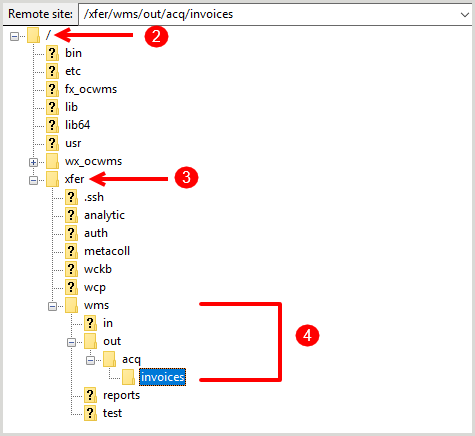
    Fasi 2-4 - Immagine

    Recupero del file esportato dal server SFTP di OCLC

  2. Passare alla directory principale .
  3. Fare clic sulla directory di trasferimento.
  4. Navigare in wms > out > acq > fatture. Viene visualizzato un elenco di tutti i file esportati negli ultimi 90 giorni. I nomi dei file sono strutturati come segue: [simbolo OCLC].out-acq-invoices.D[Data].T[Ora]
  5. Fare clic con il pulsante destro del mouse sul file di esportazione della fattura che si desidera recuperare e fare clic su Scarica dal menu contestuale.
Recupero automatico tramite codice

È possibile scrivere un semplice programma per recuperare automaticamente i file esportati. Il programma deve essere in grado di:

  1. Analizza i nomi dei file di esportazione ed estrae la data/ora più recente dal nome del file. I nomi dei file sono strutturati come segue: [simbolo OCLC].out-acq-invoices.D[Data].T[Ora].
  2. Scarica solo i file con nomi che includono una data/ora più recente dell'ultima data estratta.

 Nota: 

  • I file sul server SFTP di OCLC non possono essere rinominati o cancellati, quindi è importante tenere traccia dell'ultimo file scaricato.
  • Si consiglia di eseguire manualmente il lavoro di esportazione delle fatture durante le prove, in modo da sapere quando verrà generato un file. 

b. Trasformare il file di esportazione nel formato di dati richiesto

Once you have retrieved the export file, you can transform it into the required data format and import it into your financial system. The file contains data from:

  • Fatture
  • Voci della fattura
  • Ordini
  • Ordinare gli articoli
  • Resource (e.g., WorldCat record)
  • Fornitore

Per esempi e ulteriori informazioni, consultare Financial System Integration su OCLC Developer Network.

I passaggi generali necessari per trasformare il file sono:

  1. Identify the file type needed by your financial institution, if it is not JSON. It could be CSV, XML, tab-delimited, or another file type.
  2. Identificare i campi necessari al sistema finanziario.
  3. Identificare i campi di origine nel file WMS che dovranno essere inseriti nel nuovo file da passare al sistema finanziario.
  4. Trasformare i dati del file WMS JSON nel formato richiesto dal sistema finanziario. È necessario analizzare il file JSON, estrarre i valori dei campi richiesti e inserirli nel nuovo file nel formato richiesto. Come parte di questo processo, è necessario mappare gli ID dei fornitori e i codici dei fondi nel file WMS al sistema finanziario.

     Nota:

  • Se il formato richiesto dal sistema finanziario non ha una struttura gerarchica simile al file JSON, sarà necessario ripetere alcuni elementi di dati in più righe.
  • Alcuni campi necessari al sistema finanziario potrebbero dover essere calcolati o composti da più campi del file di origine.
  • La mappatura dei fondi e dei fornitori deve essere memorizzata nel codice, a meno che il codice del fondo in WMS non sia lo stesso del sistema finanziario, poiché non esiste un campo ID del sistema finanziario nel record del fondo in WMS.
  • Possono esistere più codici fondo WMS mappati allo stesso ID fondo del sistema finanziario.
  • There is a field in the vendor record that can be used to retrieve the ID used for the vendor by the financial system, rather than storing the mapping yourself. This is known as the Accountancy System ID and is supplied in the resulting invoice file posted to the OCLC FTP server.

c. (Facoltativo) Aggiornare e caricare il file di importazione dei pagamenti.

 Nota: Il modo più semplice per costruire un file di pagamento è modificare il file JSON esistente esportato da WMS.

Se per il lavoro di esportazione delle fatture è stata selezionata l'impostazione Stato fattura di In attesa di pagamento, al momento dell'esportazione le fatture saranno contrassegnate come in attesa di pagamento. Per contrassegnare queste fatture come pagate, è necessario caricare un file di importazione del pagamento tramite lo scambio di file OCLC. Il file di importazione dei pagamenti comunica quali fatture devono essere contrassegnate come pagate.

Lo schema del file di importazione dei pagamenti e quello del file di esportazione delle fatture sono in gran parte identici, quindi una strategia per creare un file di importazione dei pagamenti consiste nel modificare il file di esportazione delle fatture e caricarlo. È possibile modificare i seguenti campi:

  • Data pagamento (paymentDate) - Questo campo è ora modificabile e può essere diverso dalla data in cui il sistema ha modificato lo stato in pagato.
  • ID riferimento pagamento (paymentReferenceID) - Questo campo è nuovo e rappresenta il numero di assegno o di transazione di pagamento utilizzato per il pagamento effettivo trasmesso al fornitore.
  • External Invoice ID (externalInvoiceId) - This is a new field and contains a unique invoice ID used by a system external to WMS (e.g., the financial system), if different from the invoice ID used by WMS.
  • Invoice Item Total (invoiceItems.total.amount) - This allows you to overwrite the total of the invoice item to the exact total used in the financial system for the item. This will override the calculated total used in the system for the item.
File JSON per l'importazione dei pagamenti delle fatture - Esempio
{
 " fatture": [
 {
 " externalInvoiceId": "ExternalInvoiceID2",
 " paymentReferenceId": "PaymentReferenceID2",
 " paymentDate": "2020-04-12",
 " invoiceNumber": "INV-2020-44",
 " invoiceItems": [
 {
 " invoiceItemNumber": "INV-2020-44-1",
 " total": {
 " amount":  102.00,
 " valuta": "EUR"
 }
       },
 {
 " invoiceItemNumber": "INV-2020-44-4"
 }
     ],
 " id": "777a337d-d5e7-4b67-a51d-8c9754e48516",
 " exchangeRate": {
 " foreignCurrency": "EUR",
 " homeCurrency": "USD",
 " tasso": 1.09206
 }
   }, {
 " externalInvoiceId": "ExternalInvoiceID1",
 " paymentReferenceId": "PaymentReferenceID1",
 " paymentDate": "2020-04-14",
 " invoiceItems": [
 {
 " invoiceItemNumber": "INV-2020-43-1"
 },
 {
 " invoiceItemNumber": "INV-2020-43-2"
 },
 {
 " invoiceItemNumber": "INV- 2020-43-3",
 " totale": {
 " importo": 53.89,
 " valuta": "EUR"
 }
       },
 {
 " invoiceItemNumber": "INV-2020-43-4"
 }
     ],
 " id": "dc12e3c2-038d-4999-a08d-b41e38d8b4dc",
 " exchangeRate": {
 " foreignCurrency": "EUR",
 " homeCurrency: "USD",
 " tasso": 1,5
 }
     }
 ]
}

Prima di caricare il file di importazione dei pagamenti su un server di scambio file OCLC:

  • Rimuovere dal file di esportazione JSON le fatture che non sono state importate con successo nel sistema finanziario.
  • Regolare i totali della voce della fattura se sono stati modificati prima o dopo l'importazione nel sistema finanziario.

Per caricare un file di importazione dei pagamenti:

  1. Sign in to the OCLC file exchange using an open source SFTP client or using SFTP commands.
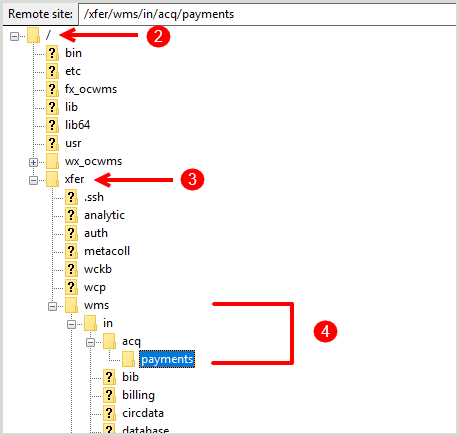
    Fasi 2-4 - Immagine

    Caricare il file di importazione del pagamento sul server SFTP di OCLC

  2. Passare alla directory principale .
  3. Fare clic sulla directory di trasferimento.
  4. Navigare in wms > in > acq > pagamento. OCLC file exchange preleverà il file e lo trasmetterà a WorldShare Acquisitions per l'elaborazione. Quando ciò accade, e dovrebbe essere quasi immediato, il file scompare dalla cartella dei pagamenti al momento dell'aggiornamento.

 Nota: le istruzioni fornite sopra illustrano come pubblicare manualmente il file di pagamento. È anche possibile scrivere un semplice programma in codice per eseguire questo processo automaticamente.

5. (Facoltativo) Monitorare le notifiche per i processi di esportazione e importazione.

È possibile visualizzare lo stato delle attività di esportazione delle fatture e delle attività di importazione dei pagamenti con il registro delle attività di esportazione delle fatture.

  1. Nella navigazione a sinistra, fare clic su Lavori automatizzati > Lavori.
  2. Selezionare Esportazione fattura dal filtro Tipo e fare clic su Applica.
  3. Fare  clic sul nome del lavoro per visualizzare la schermata del lavoro di esportazione delle fatture.
  4. Dalla schermata del lavoro di esportazione delle fatture, fare clic su Registro attività per aprire l'accordion.
  5. (Facoltativo) Fare clic su Visualizza dettagli nella colonna Stato per aprire la finestra di dialogo Dettagli registrazione, che fornisce ulteriori dettagli sul processo dell'attività.

Le colonne Registro attività e Dettagli di registrazione disponibili

Colonne Registro attività e Dettagli di registrazione - Tabella
Colonna Descrizione
Data La data e l'ora di elaborazione del file.
Tipo Il tipo di file che è stato elaborato (Importazione pagamento fattura o Esportazione fattura).
Risultato Il risultato del file che è stato elaborato (ad esempio, 2 fatture pronte su 2 esportate).
Details Ulteriori dettagli sul file elaborato (ad esempio, REQUEST_ID: B3N-GEDK-G99).
Status An icon associated with the severity of the file that was processed (Success, Warning, or Error).
Messaggio di stato Lo stato del file elaborato (Completato o Fallito). Se lo stato è Completato, sarà presente il link Visualizza dettagli. Fare clic su Visualizza dettagli per aprire la finestra di dialogo Dettagli registrazione.