
Learner guide: Use KBART files to edit WorldCat knowledge base collections
Course overview
This course provides instruction on using KBART (Knowledge Base and Related Terms) files to select, edit, or add knowledge base collections. After this session, learners will be able to create and use a KBART files to edit or add a knowledge base collection in WorldShare Collection Manager.
Note: This learner guide is designed to accompany the Use KBART files to edit WorldCat knowledge base collections course. If you attended the Use KBART files to edit WorldCat knowledge base collections instructor-led course or listened to the recording, please complete our brief evaluation. Your feedback is very important! Thank you!
Ricerca di collezioni, fornitori o titoli
Depending on the information that you have about your materials, you can search for collection, for provider, or for title.
- Click Collection Manager.
- Under Data Type, select:
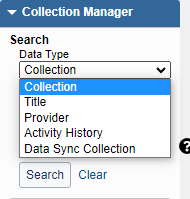
- Collezione
- Title - You can search OCLC number, ISBN number of the title, or ISSN of the title.
- Fornitore
- Activity History
- Data Sync Collection
- Option to leave the search box empty and limit search by Scope.
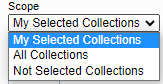
- My Selected Collections - The search will return results with your library’s collections
- All Collections - The search will return results from the global WorldCat knowledge base and any collections your library has created.
- Not Selected Collections - The search will return results with collections your library did not create or select.
- Use Filter by to refine search results.


Select and edit knowledge base collections with KBART file
1. Download KBART file
- Under the collection search results, click the desired collection to open it.
- Click Collection Actions menu.
- Select Download titles in this Collection
- Scope = Available titles in collection OR My Selected Titles
- Click Download.
- Save file to edit later or open file to edit in a spreadsheet program.
2. Edit titles in a spreadsheet program (preferably EXCEL)
- Global vs. Local edits:
- Global changes made to a global field are applicable to all libraries (e.g., Title Name).
- Local changes made to a local field are only applicable to the editing library (e.g., coverage information).
- More information about global vs. local fields can be found here.
- Edit and delete titles to match your library-specific purchase or subscription, include using the VLOOKUP function to reconcile a KBART file.
- Save file as a tab-delimited text file.
3. Upload KBART file
In the desired collection:
- Click Collection Actions menu.
- Select Upload Titles to this Collection.
- Scope = Update changes only OR Replace all titles in collection
- Click the Browse button and locate the file to upload.
- Click Upload. You will see this message: Upload is being processed.
- View the upload preview report.

- Approve or Discard upload.
Add new knowledge base collections with KBART file
1. Create a new local collection
Under Collection Manager:
- Click Create a Collection.
- Select Knowledge Base Collection.
- Click Create.
New collection screen displays (Required fields marked with a red asterisk (*))
- Properties accordion
- Enter a Collection name.
- Use or change Collection ID.
Note: Your Collection ID needs to be unique. - Search for an existing Provider or Create a Provider.
- Linking accordion
- Enter the Collection URL as appropriate.
- Link scheme - OCLC can create a link scheme for new knowledge base collection and add it here. Provide OCLC Support with the following information:
- Collection name, Collection ID, and Provider
- Sample search from the current provider to full-text
- Username and password
- Click Create to add the new collection.
2. Add titles to a new collection with a KBART file
- Create a collection of titles in spreadsheet program. Each row contains information for one title.
- Add title using KBART formatting (see section below).
- Use appropriate value in the ACTION field for each title:
Valori Descriptions grezzo Use to tell the system that the title is added for the first time riempimento automatico Use the OCLC number to find the WorldCat record and populate title - Save KBART file as a tab-delimited text (.txt) file type.
- Upload KBART file of titles
- Select Metadata.
- Expand Collection Manager.
- Search for the desired collection.
- Navigate to the collection screen.
- Click the Collection Actions menu.
- Select Upload Titles to this Collection.
- Scope = Update changes only OR Replace all titles in collection
- Click the Browse button and locate the file to upload.
- Click Upload. You will see this message: Upload is being processed.
- View the upload preview report.

- Approve or Discard the upload.
- KBART file formatting
- Electronic serials
Valori consigliati Description of values publication_title Title of journal title_url URL for journal title copertura_profondità Extent of coverage for journal title (full text, abstract, etc.) print_identifier ISSN for journal title oclc_entry_id Title ID for each title in the collection online_identifier eISSN for journal title oclc_number OCLC accession number, if available data_prima_uscita_online Start of coverage range for journal title num_primo_vol_online numero_primo_puntata_online data_ultima_edizione End of coverage range. Leave blank if coverage is still ongoing num_ultimo_vol_online numero_ultimo_puntata_online AZIONE Use “raw” value to indicate data is added for the first time
- Electronic books
Valori consigliati Description of values publication_title Title of journal title_url URL for journal title copertura_profondità Use “print” or “other” to print_identifier ISSN for journal title oclc_entry_id Title ID for each title in the collection online_identifier eISSN for journal title oclc_number OCLC accession number, if available data_prima_uscita_online Start of coverage range for journal title num_primo_vol_online numero_primo_puntata_online data_ultima_edizione End of coverage range. Leave blank if coverage is still ongoing num_ultimo_vol_online numero_ultimo_puntata_online AZIONE Use “raw” value to indicate data is added for the first time
- Print serials
Valori consigliati Description of values publication_title Title of journal title_url URL for journal title copertura_profondità Use “print” or “other” to print_identifier ISSN for journal title oclc_entry_id Title ID for each title in the collection online_identifier eISSN for journal title oclc_number OCLC accession number, if available data_prima_uscita_online Start of coverage range for journal title num_primo_vol_online numero_primo_puntata_online data_ultima_edizione End of coverage range. Leave blank if coverage is still ongoing num_ultimo_vol_online numero_ultimo_puntata_online AZIONE Use “raw” value to indicate data is added for the first time
- Electronic serials
Promote local knowledge base collections
Libraries can opt to promote a locally created collection the global WorldCat knowledge base.
To promote a locally created collection:
- Under Collection Manager, search for the collection.
- In the collection results screen, open the desired collection.
- Click Collection Actions menu.
- Select Promote Collection to Global Knowledge Base.
- Provide a summary of changes. Click Continue.
- Once request has been submitted, you will see the following message:

- Once the request is accepted and the collection promoted to a global collection, the collection ID and provider will change to:

Delete knowledge base collection and/or titles
Remove holdings from knowledge base collections
Depending on the changes with your library’s electronic resources subscriptions, you may need to periodically remove holdings from an entire collection or individual selected titles in a collection.
To Delete an entire collection your library created:
- Under Collection Manager, search for the collection. The Search results screen displays.
- Identify the chosen collection.
- Under Selections, click Delete.
To Delete individual titles in a locally-created collection:
- Under Collection Manager, search for the collection. The Search results screen displays.
- Identify the chosen collection.
- Click the collection name to display the collection.
- Search for your chosen title(s).
- Under Selections, click Delete Title.
Additional information
- WorldShare Collection Manager training - Find this class and additional training content here.
- What’s new with WorldShare Collection Manager? Check the WorldShare Collection Manager release notes.
- WorldShare Collection Manager FAQ & Troubleshooting articles
- WorldShare Collection Manager Community Center
- Connect with OCLC staff and peers using WorldShare Collection Manager.
- Share workflows and feedback, and submit enhancement requests.
- Attend webinar events and keep up with product news
Additional questions? Contact OCLC Support in your region.