Passa al contenuto principale
Supporto OCLC

Learner guide: Edit WorldCat knowledge base collections with user interface

Course overview

This course provides instruction on WorldCat knowledge base collections, including searching for collections, selecting and editing existing collections, as well as creating local collections using the WorldShare Collection Manager interface.  At the end of this session, learners will gain the foundational knowledge to search and perform basic actions on knowledge base collections.

 Note: This learner guide is designed to accompany the Collection Manager: Edit WorldCat knowledge base collections with user interface course. If you attended the Collection Manager: Edit WorldCat knowledge base collections with user interface  instructor-led course or listened to the recording,  please complete our brief evaluation. Your feedback is very important! Thank you! 

Sign in to Collection Manager

  1. In your browser, enter the WorldShare URL for your library. Your WorldShare URL will have the following format: https://yourcustomWorldShareURL.share.worldcat.org/wms. Replace yourcustomWorldShareURL with the WorldCat registry ID or configured URL qualifier for your library.
  2. On the Sign in screen, enter your Username and Password.
  3. Click Sign in.

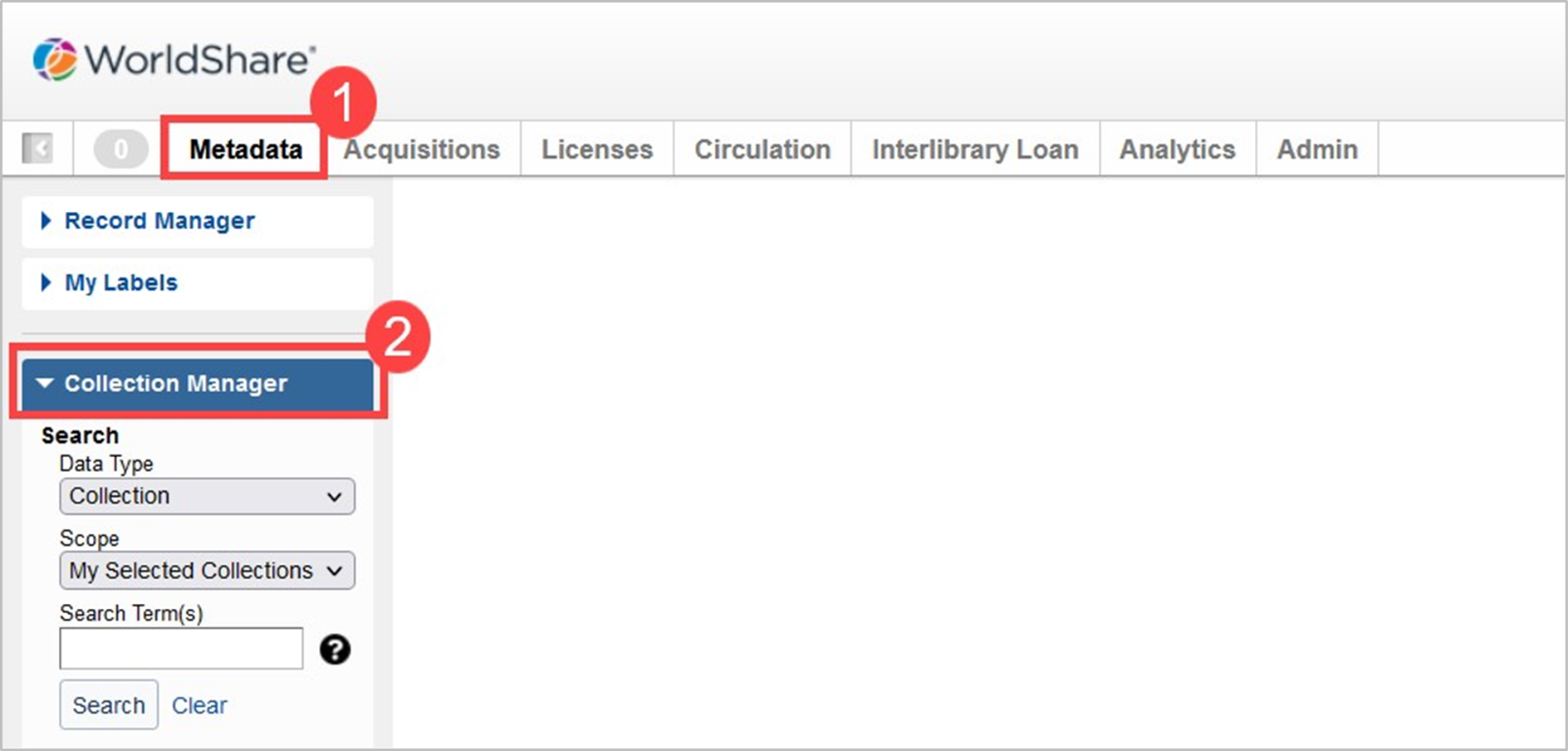
You can access Collection Manager from the Metadata module in your WorldShare interface.

worldshare-metadata-module-collection-manager.png

Refer to the Browser compatibility chart for browser compatibility information.

Searching in Collection Manager

Ricerca di collezioni 

  1. Vai su WorldShare > Pannello Metadata > Gestione Collezioni.
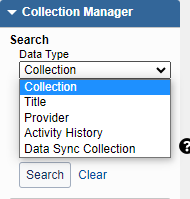
  2. Selezionare Raccolta come tipo di dati dall'elenco a discesa.
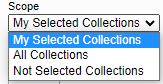
  3. Selezionare un ambito per limitare la ricerca. Le opzioni includono:
    • Le mie collezioni selezionate: Cerca tra le collezioni specifiche della biblioteca che avete creato o selezionato.
    • Tutte le collezioni: Cerca tra gli articoli disponibili nelle collezioni globali disponibili nella Knowledge Base di WorldCat e nelle collezioni create dall'utente.
    • Collezioni non selezionate: Cerca le raccolte da aggiungere alla base di conoscenze che non sono attualmente selezionate. 

      Gestore delle collezioni Le mie collezioni selezionate

  4. Nel campo Termine(i) di ricerca immetti le parole da cercare o lascia il campo vuoto.
    • If no search criteria is entered in this search field, all items are returned in the search results.
    • Enter an asterisk (*) after a search term to view items that begin with that term.
  5. Fare clic su Cerca.

    Filter

  6. Una volta ottenuti i risultati della ricerca, è possibile filtrarli utilizzando l'elenco a discesa Filtra per nella parte superiore dei risultati della ricerca:

     Nota: le opzioni di filtro vengono visualizzate in base alle impostazioni dell'istituzione e al livello di abbonamento della biblioteca.

    • Tipo di raccolta - Dal secondo elenco a discesa, selezionare un tipo di raccolta.
      • Catalogazione delle collezioni dei partner
      • Banche dati (non contiene titoli)
      • Le collezioni della Knowledge base
      • Collezioni di query
    • Collezioni che ho creato
    • Contiene contenuti ad accesso libero
    • Acquisizioni guidate dalla domanda Collezioni
    • Non più in uso 
    • Collezioni di consegna dei documenti
    • Google Scholar - Dal secondo elenco a discesa, selezionare abilitato o disabilitato.
    • Mantieni le raccolte WorldCat - Dal secondo elenco a discesa, selezionare abilitato o disabilitato.
    • MARC Record Delivery - Dal secondo elenco a discesa, selezionare abilitato o disabilitato.
    • Collezioni catalogate OCLC
    • Condivisione - Dal secondo elenco a discesa, selezionare un'opzione.
      • Collezioni condivise dalla mia biblioteca
      • Collezioni condivise nella mia biblioteca
    • Usa Proxy
      • Enabled
      • Disabled
  7. (Facoltativo) Aggiungere altri filtri utilizzando l'icona verde più aggiunta (Pulsante di aggiunta). 
  8. Fare clic su Filtro per filtrare i risultati in base alle proprie specifiche.

Search for a provider

  1. Vai su WorldShare > Pannello Metadata > Gestione Collezioni.
  2. Selezionare Provider come tipo di dati dall'elenco a discesa.
  3. Selezionare un ambito per limitare la ricerca. Le opzioni includono:
    • Le mie collezioni selezionate: Cerca tra le collezioni specifiche della biblioteca che avete creato o selezionato.
    • Tutte le collezioni: Cerca tra gli articoli disponibili nelle collezioni globali disponibili nella Knowledge Base di WorldCat e nelle collezioni create dall'utente.
    • Collezioni non selezionate: Cerca le raccolte da aggiungere alla base di conoscenze che non sono attualmente selezionate. 

      collection-manager-provider-search.png

  4. Nel campo Termine(i) di ricerca immetti le parole da cercare o lascia il campo vuoto.
    • If no search criteria is entered in this search field, all items are returned in the search results.
    • Enter an asterisk (*) after a search term to view items that begin with that term.
  5. Fare clic su Cerca.

Risultati della ricerca dei fornitori

I risultati della ricerca saranno contrassegnati da un fornitore e da altri dettagli.

Risultati della ricerca del fornitore in Collection Manager - Tabella
Colonna Titolo
Fornitore Il venditore o il fornitore di contenuti che fornisce la raccolta. Fare clic sul nome di un fornitore per visualizzare tutte le raccolte fornite dal fornitore.
Attributi
Condiviso dalla mia biblioteca Indica che la vostra biblioteca ha condiviso la collezione.
Condiviso nella mia libreria Cliccate sul nome del fornitore che ha condiviso la collezione con la vostra biblioteca per visualizzare il suo profilo.
Creato localmente Indica che la raccolta è stata creata localmente.
Selezioni

Indica quante collezioni ha il fornitore e quante sono state selezionate. Fare clic su un numero per visualizzare tutte le raccolte fornite dal fornitore o tutte le raccolte selezionate.

Azioni

Fare clic su Azioni del fornitore locale per:

  • Cancellare il fornitore
  • Modifica del fornitore

Search for a title

 Note: Keyword searches with partial words and/or special characters, including wildcards, are not supported in Collection Manager Title Search.  For example, healt* is not a supported search term, but health is supported.

  1. Vai su WorldShare > Pannello Metadata > Gestione Collezioni.
  2. Selezionare Titolo come tipo di dati dall'elenco a discesa.
  3. Selezionare un ambito per limitare la ricerca. Le opzioni includono:
    • Le mie collezioni selezionate: Cerca tra le collezioni specifiche della biblioteca che avete creato o selezionato.
    • Tutte le collezioni: Cerca tra gli articoli disponibili nelle collezioni globali disponibili nella Knowledge Base di WorldCat e nelle collezioni create dall'utente.
    • Collezioni non selezionate: Cerca le raccolte da aggiungere alla base di conoscenze che non sono attualmente selezionate.
  4. Cambiare l'indice del titolo con una delle opzioni seguenti:
    • Parola chiave
    • Titolo
    • ISBN
    • ISSN
    • Identificativo OCLC

      Filter

  5. Nel campo Termine(i) di ricerca immetti le parole da cercare o lascia il campo vuoto.

     Nota: La ricerca tramite l'Indice dei titoli identificativo OCLC senza termini di ricerca non produrrà risultati.

    • If no search criteria is entered in this search field, all items are returned in the search results.
    • Enter an asterisk (*) after a search term to view items that begin with that term.
  6. Fare clic su Cerca.

    Filter

  7. Una volta ottenuti i risultati della ricerca, è possibile filtrarli utilizzando l'elenco a discesa Filtra per nella parte superiore dei risultati della ricerca:
    • Copertura - Data - Formattare la data come AAAA-MM-GG, AAAA-MM o AAAA.
    • Copertura - Enumerazione - Inserire un volume e un numero di edizione.
    • Profondità di copertura - Dal secondo elenco a discesa, selezionare una profondità di copertura.
    • Provider - Dal secondo elenco a discesa, selezionare o cercare un provider specifico.
  8. (Facoltativo) Aggiungere altri filtri utilizzando l'icona verde più aggiunta (Pulsante di aggiunta). 
  9. Fare clic su Filtro per filtrare i risultati in base alle proprie specifiche.

Maintaining knowledge base collections with the user interface

Select a collection in full

  1. From the search results list, you will see collection data for each result such as: collection name, type/attributes, provider, and the number of titles selected over the number of titles in the collection (For example: 0/2,519).
  2. From the Selections column, use the Select all Titles button to select all titles in the collection.
    Or,
    From the title list, click Collection Actions, then Select Collection
    • Libraries with WorldShare Acquisitions will also see an Add to button allowing you to add the item to an Order or Purchase Request.
  3. After selecting the collection, a Locked for re-indexing message will appear to alert you that the titles in the collection are being indexed.

 Caution: It can take up to 24 hours for re-indexing to complete and large files can take longer to process.

Deselezionare una collezione 

  1. Navigate to the WorldShare interface > Metadata tab > Collection Manager.
  2. Select a Data Type from the drop-down list.
     Note: Select My Selected Collections as the Scope.

    Ambiti di ricerca di Collection Manager 

  3. Nel campo Termine(i) di ricerca immetti le parole da cercare o lascia il campo vuoto.
  4. Fare clic su Cerca.
  5. From the search results list, locate the collection you want to deselect and then click the Deselect all Titles link in the Selections column.

    Deselezionare una collezione

    • Se la consegna dei record MARC è abilitata per la collezione, si aprirà la finestra di dialogo Interrompi consegna MARC. Dalla finestra di dialogo, selezionare una delle seguenti opzioni:
      • Deliver Delete Records - You will receive delete records for the collection after it is deselected.
      • Do Not Deliver Delete Records - You will not receive delete records for the collection after it is deselected.

    After deselecting the collection, a Not Selected message will appear to alert you that the collection is not selected by your library.

Deselect a title

  1. Navigate to the WorldShare interface > Metadata tab > Collection Manager.
  2. Select a Data Type from the drop-down list.
     Note: Select My Selected Collections as the Scope.

    Ambiti di ricerca di Collection Manager

  3. Nel campo Termine(i) di ricerca immetti le parole da cercare o lascia il campo vuoto.
  4. Fare clic su Cerca.
  5. From the search results list, click the collection name from which you want to deselect a title.
  6. From the Titles table, locate the title you want to deselect and then click the Deselect Title link in the Selections column.

Modify titles one-by-one in the interface

To modify one title at a time:

  1. Navigate to the collection. Open the collection and expand the Titles accordion.
  2. Modify title information:
    • Select and deselect titles
    • Modify coverage, and so forth

Modify titles using the Title Work List 

To deselect or select several titles within a collection or across collections, use the Title Work List.

From the search results or collection Titles drop-down,

  1. Select each title to be added by using the checkboxes on the left side.
    • To select all titles on the page, select the checkbox in the top row. Click through additional pages to add more titles from the results. 
  2. Once selected, the item count in the left navigation menu next to Title Work List will update to reflect the number of Titles added.
    • Add up to 500 titles to the Title Work List. 
    • To remove individual titles from the Title Work List, select the remove button Screenshot of the Remove button in WorldShare Collection Manager next to the desired title. 
  3. Click on the Title Work List option in the left navigation. 
  4. From the Title Work List screen, select the Work List Actions drop-down.
  5. Select Deselect all Titles or Select all Titles
  6. The list will appear as Successfully submitted. Once it finishes processing, an Operation complete status will appear and the Result of each title will appear in a new column.
  7. The titles will be deselected or selected. 

Refer to Title Work List for more information. 

 Note:  For details on using a KBART file  to select, delete, and/or edit titles, see Modify title with a KBART file. This process is discussed in a separate course: "Use KBART files to edit WorldCat knowledge base collections".

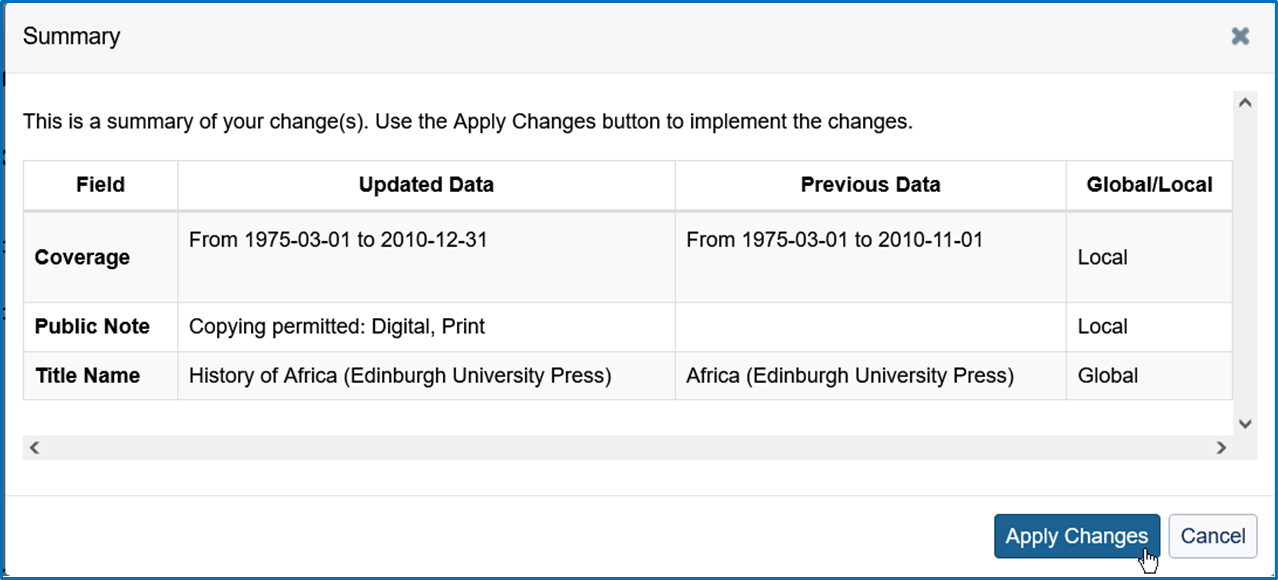
Edit a title in a knowledge base collection with user interface


Learn more about updating title information in existing collections.

Create a knowledge base collection

You have two options for adding titles to your collection. Follow the instructions to Create a collection and and to Navigate to the collection you created. Then follow the steps to Add title one-by-one in the interface or Add titles using a KBART file upload .

Create a collection 

  1. Sign in to the WorldShare interface at your library's WorldShare URL. Replace yourlibrary with your library's identifier: https://yourlibrary.share.worldcat.org/wms
  2. Navigate to Metadata (or Licenses)> Collection Manager.
  3. Click Create a Collection and select Knowledge Base Collection from the Collection Type drop-down.
  4. Click Create.
  5. Open the Properties accordion for a new collection:
    1. Enter a Collection Name.
    2. Collection ID will be generated automatically.
      • You have the option to customize this ID but the value must remain unique among collections.
    3. Optional. Enter a Provider.
      • When you create a knowledge base collection, you have the option to complete the field for Provider. If your provider is not already in the WorldCat knowledge base, you can create a custom provider so that the provider will be available in your local knowledge base. Your custom provider (for example, "My University") will be searchable content in Collection Manager. You will be able to sort this provider among the other WorldCat knowledge base providers when you elevate links from a specific provider for WorldCat Discovery.

         Note: Create local collections per provider for linking consistency. Including titles from multiple providers in a single locally created collection is not recommended. 
         
    4. Optional. Enter a Description, select Attributes, or enter Public or Staff Notes.
  1. Click Create.

Navigate to the collection you created 

  1. Navigate to the Collection Manager search box.

  2. Select My Selected Collections as the Scope and click Search.

  3. Use the Filter drop-down list at the top of the screen to narrow your search results. Choose:
    • Collections I created
       

      Screenshot highlighting how to navigate to collections you created in WorldShare Collection Manager

Adding titles

  1. After you Navigate to the collection you created, click on the name of your collection in the search results to open your collection.

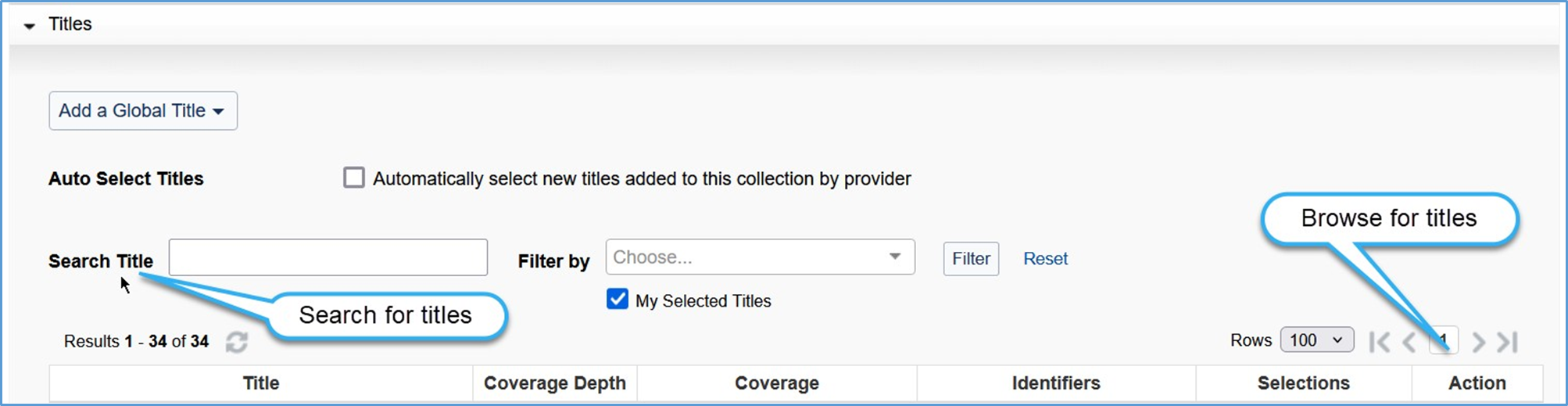
  2. Expand the Titles accordion.

This accordion displays a list of titles within the collection that users have selected. To find the list of title-level settings, please see Title-level settings in knowledge base collections and/or the documentation on how to Modify a collection to select your subset of titles for more information.

Aggiungi un titolo globale

When viewing a global collection, use the Add a Global Title drop-down and select Create a Title to add a knowledge base title. See How to add a new title to an existing collection for more information.

Screenshot highlighting the Add a Global Title button in WorldShare Collection Manager

Aggiungere un titolo locale

When viewing a local collection, use the Add a Local Title drop-down to select how you will add a knowledge base title to your local collection. Select either Create a Title or Create Using OCLC Number to Pre-fill.

Screenshot highlighting the Add a Local Title button in WorldShare Collection Manager

Creare un titolo

Select this option to add new titles by manually typing in the information.

Add title data manually

  1. From the Add a Local Title drop-down list, select Create a TItle.

  2. Enter a Title Name.

  3. Select the Coverage Depth. Options include:
    • Audio
    • Ebook
    • Immagine
    • Rivista - Estratti
    • Giornale - Testo completo
    • Giornale - indicizzato
    • Giornale - Testo completo selezionato
    • Giornale - Stampa
    • Video
    • Altro
  4. Inserire i campi obbligatori. I campi richiesti variano a seconda della profondità di copertura:
    • If creating an e-resource collection, enter a Title URL that resolves to a homepage for each title
    • If creating a print journal collection, select Journal – Print under Coverage Depth and then select Add Coverage under Coverage and enter coverage details for each title. See Coverage for details.
    • Use the correct date format (YYYY-MM-DD). See KBART values and formatting for details
  5. Enter the appropriate Linking information. See Title level settings in knowledge base collections, Linking
  6. Click Save.
  7. Ripetete i passaggi per aggiungere ogni titolo fino a quando non avrete aggiunto tutti i titoli della collezione.

Crea utilizzando il numero OCLC per la pre-compilazione

Select this option to have the system fill in title data automatically if the OCLC number is available. To add a title automatically:

  1. From the Add a Local Title drop-down list, select Create Using OCLC Number to Pre-fill.
  2. Enter the OCLC number in the box that appears and click Continue. The system will find the WorldCat record and automatically fill in the available information such as:
    • Titolo, numero OCLC, profondità di copertura, ecc.
  3. Si consiglia di verificare l'accuratezza della profondità di copertura.
  4. Se necessario, popolarlo:
    1. Informazioni sulla copertura
    2. URL del titolo

Selezione automatica dei titoli

The Auto Select Titles setting in global knowledge base collections enables functionality to automatically select titles as they are added from OCLC data updates. You can enable or disable the setting regardless of whether you have selected a collection in full or have selected a subset of titles. 

Request OCLC create a link scheme for your collection (optional) 

Link schemes are needed in order for articles to resolve to full text. Regardless of how the collection is created (one title at a time or via file upload) you need a link scheme for e-journal collections to resolve to full-text for articles. Without a link scheme, article citations will link to the journal’s homepage instead of the article.

OCLC can create a link scheme for you, but only if:

  • All titles are on the same platform
  • The provider uses consistent structure for their linking syntax, and
  • The platform supports article level linking

See Link scheme values and overrides for details.

Make your collection available to other libraries 

Learn how to add your custom collection to the global WorldCat knowledge base so all other Collection Manager libraries can select and use the collection's title data. See Cooperative management.

Add to global

Search activity history

La Cronologia attività in WorldShare Collection Manager si applica alle raccolte di knowledge base, alle raccolte di query e alle raccolte dei partner di catalogazione. Non include informazioni sulle raccolte di sincronizzazione dei dati.

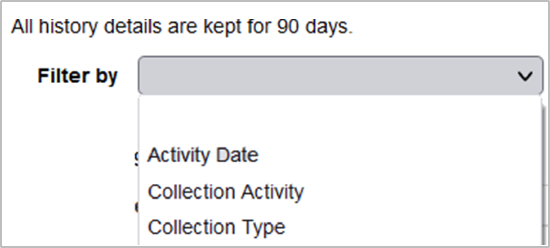
 Nota: le attività sono monitorate per 90 giorni.

collection-manager-search-activity-history.png

  1. Passare alla scheda Metadati > Collection Manager.
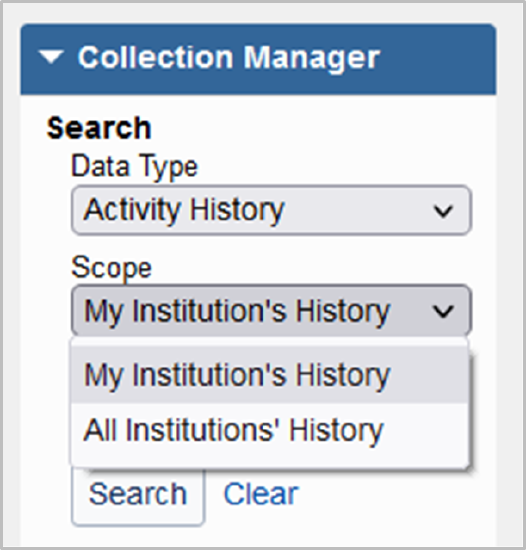
  2. Selezionare Cronologia attività dal menu a discesa Tipo di dati .
  3. Selezionare l'ambito di applicazione. Le opzioni includono:
    • La storia della mia istituzione: Cerca tra le collezioni che riguardano la tua biblioteca.
    • Storia di tutte le istituzioni: Ricerca nella storia di tutte le istituzioni.
  4. Nel campo Termini di ricerca, inserire i termini desiderati o lasciare il campo vuoto per visualizzare tutta la Cronologia attività.
  5. Fare clic su Cerca.

I risultati della ricerca saranno ordinati in base all'attività più recente.

Filtrare i risultati della ricerca della Cronologia attività

I filtri nella Cronologia attività sono additivi. È possibile combinare filtri e selezioni a discesa.

collection-manager-filtro-attività-storia.png

  1. Utilizzare il menu a tendina Filtro per per selezionare uno dei tipi di filtro disponibili.
  2. Per ogni opzione Filtra per, selezionare uno o più sottofiltri.
  3. Add a second filter row by using the green plus add icon Pulsante di aggiunta.
  4. Fare clic su Filtro per filtrare i risultati in base alle proprie specifiche.

Filtri di ricerca della Cronologia attività disponibili

Trova informazioni sui filtri e sui sottofiltri disponibili e sui tipi di raccolte a cui sono applicabili.

Espandere per vedere tutti i filtri e sottofiltri di ricerca
Filter Sottofiltri Si applica alle raccolte di knowledge base Si applica alle raccolte di query Si applica alla catalogazione delle collezioni dei partner Ulteriori informazioni
Data attività Da [Data] - A [Data]
Attività di raccolta Collezione creata X (solo raccolte locali) X X  
Collezione aggiornata X X X  
Collezione Eliminata X (solo raccolte locali) X X  
Collezione selezionata X (solo collezioni globali)      
Collezione Deselezionata X (solo collezioni globali)      
Collezione locale promossa a cooperativa globale X (solo raccolte locali)     L'istituzione che ha inviato la collezione vedrà le attività quando invia una collezione, la ritira, quando OCLC accetta o non è in grado di accettare. La collezione locale non esisterà più quando la collezione diventerà globale. Rimarrà un evento.
Collection Type Catalogazione della collezione partner        
Base di conoscenze - Globale        
Base di conoscenze - Locale        
Raccolta di query        
Carichi & Feed KBART Caricare X     Vedere Raccolta della conoscenza Cronologia attività, KBART Upload 
Caricamento dati dal Provider X (solo collezioni globali)     Vedere la raccolta della Knowledge Base Cronologia attività, Caricamento dati fornitore 
Alimentazione automatica delle aziende X (solo collezioni globali)     Vedere la raccolta della Knowledge base Cronologia attività, Feed automatico delle partecipazioni
Base di conoscenza alternativa File di tenuta dei fornitori X (solo collezioni globali)     Vedere Raccolta della conoscenza Cronologia attività, Fornitore alternativo della base di conoscenza 
Fornitore [Menu a tendina dei nomi dei fornitori] X   X  
Settings - Automatic Holdings Feed Feed added X     Refer to Knowledge base collection Activity History, Automatic Holdings Feed
Feed edited X     Refer to Knowledge base collection Activity History, Automatic Holdings Feed
Feed removed X     Refer to Knowledge base collection Activity History, Automatic Holdings Feed
Feed paused X     Refer to Knowledge base collection Activity History, Automatic Holdings Feed
Feed resumed X     Refer to Knowledge base collection Activity History, Automatic Holdings Feed
Impostazioni - Google Scholar Impostazioni della raccolta - Google Scholar abilitato/disabilitato X      
Impostazioni dell'istituzione - Google Scholar abilitato/disabilitato X      
Impostazioni - Record MARC Impostazioni della raccolta - Registrazioni MARC abilitate/disabilitate X X X  
Impostazioni dell'istituzione - Registrazioni MARC abilitate/disabilitate X X X  
Impostazioni - WorldCat Holdings Impostazioni della raccolta - Possessi WorldCat Abilitati / Disabilitati X   X  
Impostazioni dell'istituzione - Possessi WorldCat Abilitati/Disabilitati X   X  
Attività di condivisione Condivisione accettata (da un'altra biblioteca) X      
Condiviso dalla mia biblioteca (a un'altra biblioteca) X      
Condiviso con la mia biblioteca (da un'altra biblioteca) X      
Work List Activity Title Work List Selected  X      
Title Work List Deselected X      


Test your knowledge

  1. Name two reasons why libraries use WorldCat knowledge base collections?

  2. Name two ways to select collections in the WorldCat knowledge base using the WorldShare Collection Manager application.

  3. After selecting an entire collection, you will need to deselect the entire collection before you can select individual titles within that collection.

    1. True

    2. False

  4. Explain when you would create a new WorldCat knowledge base collection.

Answer key
  1. Libraries use WorldCat knowledge base collections to inform other OCLC services to:

    • Provide easy access to their electronic resources in search results with WorldCat Discovery

    • Share their electronic resources with other libraries with WorldShare ILL

    • Manage budgeting, ordering, and acquisition of their electronic resources with WMS Acquisitions

    • Control access rights and link resolution of their electronic resources with License Manager

    • Develop custom solutions that embed their electronic resources with the WorldCat knowledge base API

  2. Name two ways to add collections in the WorldCat knowledge base using the WorldShare Collection Manager application.

    • Libraries can select knowledge base collections in the global knowledge base to represent their electronic resources.

    • Libraries can create new knowledge base collections to represent their electronic resources.

  3. b. False. If you initially selected a collection in full to match your library-specific holdings, Collection Manager does not require you to deselect the collection to remove your holdings from all titles in the collection before you can make changes. As needed, you will be able to select or deselect titles to maintain your library-specific holdings.

  4. Explain when libraries would create a new WorldCat knowledge base collection.

    • Libraries create new knowledge base collections for small niche collections that are not widely owned.

    • Libraries create new knowledge base collections to add their print serials to WorldCat knowledge base for representation alongside their electronic serials in an A-Z list.

Test your skills

 Note: You will be using your library’s Collection Manager to do these exercises. If you make changes, note of these changes so you can undo the changes, deselect titles or collections, and delete newly created collections.

Exercise 1: Search in Collection Manager

1a: Search for a collection

  1. Select Metadata.

  2. Expand Collection Manager.

  3. Select Data Type Collection.

  4. Search Term(s): Art, Design and Architecture Collection by Proquest

  5. Select Scope Not Selected Collections
     Note: Your library just purchased this collection and does not have holdings selected for this collection.

How many titles are in this collection? ______________________________________________________

1b: Search for titles

  1. Select Data Type Title.

  2. Select Scope Not Selected Collections.

  3. Search for OCLC number 48418629.

    What is the title? ______________________________________________________

  4. Search for ISBN number 9780470026823.

    What is the title? ______________________________________________________

  5. Search for ISSN number 1938-7806.

    What is the title? ______________________________________________________

Exercise 2: Edit a knowledge base collection

  1. Search for a collection of your choice. Identify and open your collection for editing.

    Collection name: ______________________________________________________

  2. Review your list of titles for the collection and select a few titles to add holdings to the titles. Selected titles: ______    Selected titles:  ______

  3. Edit two titles as follows:

    • Edit coverage information, if applicable.

    • Edit ISSN or ISBN  for your chosen title.

    • Add staff and/or public notes, as needed.

Exercise 3: Create a collection

  1. Select Metadata.

  2. Expand Collection Manager.

  3. Click the Create a collection button.

  4. Select Knowledge Base Collection. Click Create.

  5. Enter the following information in the Properties accordion:

    1. Enter a Collection Name: ______________________________________________________
       Note: Include your initials as part of the collection name.

    2. Enter Provider as OCLC Training.

    3. Click Create.

  6. Title accordion:

    1. Add a title manually add each title to the collection.

      1. Click Add a Local Title menu, select Create a Title.

        • Electronic journal: Swimming World Magazine

        • Publisher: Sports Publications, Inc.

        • ISSN: 0039-7431

        • Full-text Coverage: April 1, 1998 (start) – June 1, 2006 (end)

        • OCLC#: 247119104

        • Title URL: https://www.oclc.org/oclctraining/ex...es/ex247119104

        • Fare clic su Salva.

    2. Add a title to the collection using an OCLC number.

      1. Click Add a Local Title menu, select Create Using OCLC Number to Pre-fill.

        • Electronic book: The Golden House

        • Author: Salman Rushdie

        • Date: 2017

        • ISBN: 9780735273580

        • OCLC#: 972181933

        • Title URL: https://www.oclc.org/oclctraining/ex...es/ex972181933

        • Fare clic su Salva.

Exercise 4: Deselect and delete knowledge base collections

  • Search for each of the collection you worked with from the previous exercises.

    • Collection name: ______________________________________________________

    • Collection name: ______________________________________________________

    • Collection name: ______________________________________________________

  • Remove holdings for all selected or locally created collections.

Additional information

We look forward to seeing you in the next class!