Automated Request Manager
As a feature of Smart fulfillment, use the Automated Request Manager (ARM) screen to configure automated ILL workflows. Automations are composed of match criteria you define along with actions you want the system to perform on matched requests.
Per accedere a questa schermata, accedere a OCLC Service Configuration, aprire il modulo WorldShare ILL dal menu di navigazione a sinistra, quindi selezionare Automated Request Manager.
The Automated Request Manager is divided into two tabs:
- In prestito (predefinito)
- Prestito
Le automazioni sono una combinazione di:
- Matches: What the request should look like.
- Azioni: operazioni che il sistema deve eseguire con la richiesta.
- Eccezioni (solo prestito): quando non si desidera che queste azioni si verifichino.
- Priorità: se una richiesta corrisponde a più automazioni, quale serie di azioni deve essere eseguita.
Nota: i profili Direct Request configurati in precedenza verranno visualizzati in Gestione richieste automatizzata come automazioni.
Corrispondenza bibliografica
Bibliographic matching helps patrons get the item they asked for. When someone submits a new borrowing request through a supported path (listed below), Resource Sharing for Groups searches WorldCat using the citation on the request. It finds WorldCat records that count as good matches for that request.
The system then picks one main, best matched, WorldCat record for the request. When several records qualify, it picks the one held by the most libraries worldwide. That main record does two jobs:
- It fills in bibliographic information on the request (title, OCLC number, and related data).
- If you use borrowing automations, it helps the system decide which automation applies.
This matching runs for eligible new requests even if you do not use the Automated Request Manager.
More than one WorldCat record can match
Sometimes WorldCat has more than one good record for the same item (for example, different editions of the same work or records for an e-serial vs. a print serial). The request still gets one main record applied, as described above.
Some automations go further. If the matched automation builds a lender string or sends the request to lenders using a Custom Holdings Path, the Automated Request Manager also checks your preferred lenders against other good matching WorldCat records, not only the main record. That way, a lender is not skipped just because their holdings are on a different edition or different record in WorldCat.
What borrowing staff usually see first on the request is bibliographic data from the main best matching record. Later, as the request moves through lenders in the lender string, that data may change to match the lender or edition held by each lender in the lender string.
If no automation applies, or the automation only updates constant data or moves the request to review (it does not build a lender string or send to lenders), this main record is used to update the bibliographic fields on the request, and that is typically the end of matching.
When bibliographic matching runs
Matching runs automatically when a request is submitted via:
- Resource Sharing for Groups request form
- OpenURL
- Data typed into a blank request form
- FirstSearch
Note: Matching does not run when staff create a request manually in the staff interface unless the request is sent to automation.
When there is no OCLC number on the request, the same rules use the format of the most widely held record from the search, not mainly the format on the form.
Notes about matching
- If the request has only an ISSN or ISBN, the title on the request must be close enough to the WorldCat title.
- The system uses ISSN, OCLC number, and ISBN when they appear on the request and looks in WorldCat for records with those identifiers that also pass title checking.
- When the request includes an OCLC number, format matching is based on the material format of that WorldCat record (not mainly the format on the request form). Only records whose format is the same or in the same format group as that record are kept—for example, book and e-text are in one group; DVD is not grouped with book.
When there is no OCLC number on the request, the same rules use the format of the most widely held record from the search, not mainly the format on the form. Some related formats are treated as equivalent during matching:
- Book, E-Text, Integrated Resource, Dissertation, Microform, and Thesis
- Serial, E-Serial, Newspaper, Serial - Bound, and Serial - Unbound.
Print and electronic serial records can both be acceptable when they share an ISSN and pass title checking, because serial formats are in the same group. Other formats each have their own category (for example, DVD, VHS, and sound recording). A request for a DVD will not pull in book or VHS records for the same title.
Limiting which WorldCat records can match
Most of the time, bibliographic matching may include more than one acceptable WorldCat record when ISBN, ISSN, or OCLC number searches find equivalent editions or cataloging choices. That helps automation find lenders among your most preferred partners when any related record is acceptable.
Other times you already know the exact WorldCat record you want to use to find lenders. You do not want matching to expand the list of acceptable records using other identifiers on the request. The same need comes up when a patron requires large print and a regular print copy is not acceptable.
Edition preference and edition text on the request tell matching when to narrow results. Matching uses these values as originally submitted on the request, before it updates bibliographic fields.
Setting edition preference on the request
Edition preference and edition text must be on the request when it is submitted or when staff send it to automation. You can set them in the staff interface, on patron request forms, or both.
- Staff interface: When staff create or edit a borrowing request, use the Request details section.
- Set Preferred edition to This edition when you need matching to use a specific WorldCat record and not broaden to other editions.
- Use Edition for edition notes (for example, large print), together with the OCLC number and other bibliographic fields.
- To apply a particular record, search Discover Items from the request (for example, using the magnifying glass next to the title or a standard number), open the record, and apply its bibliographic data to the request, or enter the OCLC number directly in Request details.
- Confirm any edition-related fields and the OCLC number before you send the request to automation.
- Patron request forms: Patron interlibrary loan forms can optionally include the same information.
- In Patron Request Workforms, your library can add the Edition field (patron section) and Edition (text) (bibliographic section).
- Large-print detection matches phrases in edition text (for example, large print, large type), not yes/no answers.
- Patrons only see fields your library adds to the form. If a field is not on the form, patrons cannot enter that information on that submission; staff can still set edition preference, edition text, and the OCLC number in the staff interface.
- In Patron Request Workforms, your library can add the Edition field (patron section) and Edition (text) (bibliographic section).
This edition with an OCLC number
Choose This edition when staff or the patron need that specific WorldCat record, not a different edition the system might otherwise find from ISBN or ISSN.
When This edition is selected and the request includes an OCLC number, acceptable matches are limited to that OCLC number only. Bibliographic matching does not use ISBN or ISSN on the request to add other acceptable records. If that OCLC number cannot be matched, the request typically moves to Review for staff follow-up.
Selecting This edition without an OCLC number on the request does not narrow matching by itself.
Large print in edition text
When edition text indicates large print (recognized English and non-English phrases, matched without regard to case), acceptable matches are limited to large-print print-book records in WorldCat. This works together with the usual identifier, title, and material format rules.
This edition and large print can both apply. If This edition is selected with an OCLC number and edition text indicates large print, matching uses only that OCLC number and the record must also qualify as large print. If it does not, the request will move to Review.
Other edition settings
Any edition (or no preference selected) keeps the broader matching behavior described earlier, except when edition text triggers large print filtering.
Most recent edition does not change which WorldCat records are acceptable during bibliographic matching.
Request history includes an automation history with notes when these rules restricted matching or caused an ISBN or ISSN search to be skipped. Staff can review those notes when a request lands in Review.
Impostazioni di persistenza e Gestione richieste automatizzata
We recommend that libraries do not use constant data persistence and toggle the Persistence Setting to Off in the OCLC Service Configuration > WorldShare ILL > Constant Data module. Instead, apply constant data for both borrowing and lending via automation.
Per richieste di prestito:
- When the Persistence Setting is enabled in the OCLC Service Configuration > WorldShare ILL > Constant Data module, the DEFAULT constant data record overrides other Constant Data applications including through automation. If using automations to apply constant data on borrowing requests, turn off the Persistence Setting. See Constant Data.
Per richieste di prestito:
- Constant data persistence will be blocked on lending requests where automation has taken an action to apply a constant data record.
- When the Persistence Setting is enabled in the OCLC Service Configuration > WorldShare ILL > Constant Data module, and when an automation has taken an action to apply constant data on a request:
- Persistence will be disabled on that lending request.
- Verrà visualizzato un messaggio di avviso in arancione nella parte superiore dello schermo per avvisare gli utenti che la persistenza costante dei dati è attivata, ma l'automazione ha già eseguito tale attività, con una raccomandazione di disattivare la persistenza costante dei dati nella configurazione del servizio.
- When the Persistence Setting is enabled in the OCLC Service Configuration > WorldShare ILL > Constant Data module, and an automation has not taken an action to apply constant data on a request, constant data persistence will operate as usual.
Prestito
Le automazioni consentono di determinare come vengono elaborate le richieste generate dagli utenti. OCLC consiglia di creare almeno un'automazione del prestito per i prestiti e una per le copie. Tenere presente quanto segue durante la configurazione delle automazioni:
- Automations are applied based on the Automation Priority setting. A patron-generated request is compared against all automations. Of all the automations that match the request, the automation with the highest priority, or lowest assigned Automation Priority number, will be applied to the request.
- Ogni automazione deve avere un valore numerico univoco per Priorità automazione.
- Assegnare la priorità più alta (numero più basso) alle automazioni più specifiche.
- Ogni automazione deve avere almeno una corrispondenza, un'azione o un'eccezione (non una per ciascuna).
- Se non si seleziona alcun criterio di corrispondenza, l'automazione verrà applicata a tutte le richieste.
- Se si selezionano corrispondenze ma non azioni o eccezioni, tutte le richieste che corrispondono a quell'automazione verranno indirizzate alla revisione.
Standard Actions for Borrowing
At the top of the screen is a list of the standard actions the system automatically performs on new borrowing requests. All libraries will see the four actions on the left of the screen:
- Corrispondenza record bibliografico
- Requests that are not matched to a WorldCat record will not go through automation and will appear in the Review queue.
- Verifica del posseduto WorldCat
- Verifica posseduti nella Knowledge base
- Verifica gruppo di posseduto personalizzato
Ulteriori azioni sono disponibili in Tipasa:
- US Copyright Management
- See Advanced Workflows configuration information.
- OPAC holdings check (currently for libraries using WMS, Ex Libris Alma, or Innovative’s Sierra)
- See Advanced Workflows configuration information.
- Patron approval check
- See Patron Settings for configuration information.
- RapidILL holdings check
- See External System Settings for configuration information.
- Notifiche
- Vedere Notifiche per informazioni sulla configurazione.
Configurare le automazioni principali per il prestito
Per aggiungere un'automazione:
- Select the Borrowing tab.
- Fare clic su + Aggiungi nuovo.
- Immettere un Nome e assegnare una priorità. Per ulteriori informazioni, vedere Campi di automazione principali per Campi in prestito.
- Selezionare i criteri di corrispondenza desiderati dal menu a discesa Corrispondenze . Per ulteriori informazioni, vedere criteri di corrispondenza dell'automazione per il prestito.
- Se non si seleziona un criterio di corrispondenza, l'automazione verrà applicata a tutte le richieste.
- Fare clic sul pulsante
 Aggiungi una corrispondenza per configurare ulteriori criteri di corrispondenza.
- Select any desired actions from the Actions drop-down menu. See Automation Actions for Borrowing for more information.
- Click the Add an Action button to configure additional match criteria.
- Click the
- Click the Add an Exception option to select any Exceptions. See Automation Exceptions for Borrowing for more information.
- Se un'eccezione viene verificata su un'automazione corrispondente, verrà applicata solo l'eccezione e le altre azioni selezionate non verranno applicate, ad eccezione dell'azione Aggiungi tag richiesta.
- Fare clic su Salva.
Per modificare un'automazione:
- Dall'elenco Automazioni principali, selezionare il pulsante Modifica associato all'automazione desiderata.
- Modificare le informazioni, come appropriato. Rimuovere corrispondenze, azioni ed eccezioni con il pulsante Rimuovi
 .
- Fare clic su Salva.
Per eliminare un'automazione:
- Dall'elenco Automazioni principali, selezionare il pulsante Elimina accanto all'automazione desiderata.
- Nella finestra di conferma, fare clic su Elimina.
Main Automation fields for Borrowing
| Campo | Descrizione |
|---|---|
| Nome* |
Nome di questa automazione (limite di 20 caratteri, senza caratteri speciali) che indica l'ambito del gruppo di richieste a cui appartiene l'automazione. Il nome deve essere univoco. Note: Names are not case sensitive, so, for example, TEST is the same as test. Nota: se è stata inclusa una descrizione nei profili Direct Request configurati in precedenza, la descrizione verrà visualizzata come testo di sola lettura sull'automazione. |
| Priority* |
Impostare una priorità numerica per ogni automazione.
|
Criteri di corrispondenza per l'automazione
Configurare i criteri di corrispondenza in base ai dettagli della richiesta.
| Campo | Descrizione |
|---|---|
| Età del materiale |
Per i prestiti: Used to restrict the borrowing of items that are either very new or very old based on their publication date. Per le copie: Digitare un numero intero compreso tra 0 e 1000 che rappresenta l'età del materiale espressa in anni. |
| Formati |
|
| Languages | Una o più lingue che una richiesta deve specificare se vuole corrispondere all'automazione. |
| Necessario al più presto |
|
| Patron Departments |
Examples: |
| Nota dell'utente |
Indica se un utente ha inserito una nota sulla richiesta. Corrispondenza su:
|
| Stati utente |
Examples: |
| L'utente pagherà fino a |
Examples: |
| Origini richiesta |
|
| Tipo di richiesta |
|
Azioni di automazione per il prestito
Una volta determinate le richieste che si desidera automatizzare, le automazioni possono essere configurate con azioni specifiche.
Nota: alcune azioni si escludono a vicenda. Le azioni non disponibili vengono automaticamente rimosse durante la creazione dell'automazione.
| Campo | Descrizione |
|---|---|
| Aggiungi tag richiesta |
Select the request tag(s) to automatically apply to requests matching this automation. Press enter after selecting a tag and ensure the tag turns blue before saving. For more information on request tags, see Tags. |
| Applica dati costanti |
Selezionare il record Dati costanti, se presente, che si desidera applicare alle richieste corrispondenti a questa automazione. Una volta selezionata questa azione, verrà visualizzato un elenco a discesa di tutti i record di dati costanti correnti per il proprio istituto.
|
| Crea stringa prestatore |
Selezionare questa opzione se si desidera creare una stringa prestatore sulla richiesta senza inviare la richiesta automaticamente ai prestatori. Una volta selezionata questa opzione, verrà chiesto di selezionare un percorso di posseduto personalizzato dall'elenco completo dei percorsi di posseduto personalizzato attualmente configurati per il proprio istituto. Le stringhe delle biblioteche a cui fare richiesta verranno applicate e spostate in revisione.
When a borrowing automation includes a local holdings exception (e.g., If Held By My Institution), the system generates a recommended lender string before sending the request to your Review File. This process enables you to review requests for items held locally while keeping the recommended lender string intact for future reference, in case the request is later submitted through interlibrary loan. |
| Instradare richiesta alla revisione |
Automation will move matching requests to your Review queue. If you do not select an action that routes a request elsewhere (to lenders, purchase, or Document Delivery), this action will apply by default. |
| Instradare la richiesta alla revisione per l'acquisto |
Le richieste verranno inviate a Richieste di acquisto > Revisione per la coda di acquisto . |
| Instradare la richiesta alle acquisizioni WMS |
Solo per biblioteche WMS. L'automazione sposterà le richieste corrispondenti in WorldShare Acquisitions per prendere in considerazione l'acquisto.
|
| Invia richiesta ai prestatori |
|
Eccezioni di automazione per il prestito
Configurare le eccezioni nell'automazione che si applicano al posto delle azioni definite quando sono vere.
| Campo | Descrizione |
|---|---|
| In caso di richiesta duplicata, inoltrare alla revisione |
Eventuali richieste duplicate verranno inviate al file di revisione. |
| Se detenuto dal gruppo di posseduto personalizzato, inoltrare alla revisione |
Examples:
Note: If the automation also includes the Build Lender String or Send Request to Lenders action, Automation builds a recommended lender string before routing the request to your Review File. The request will remain in your Review File until you decide whether to fulfill the request locally or send it to lenders. |
| If Held By My Institution, Route to Document Delivery |
When selected, all requests from your patrons for items held by your institution will be moved to your Document Delivery queue for separate processing. Note:
|
| If Held By My Institution, Route to Review | Le richieste verranno inviate al file di revisione quando l'istituzione detiene l'elemento richiesto.
|
Use borrowing automations with Tipasa
Le automazioni consentono di determinare come vengono elaborate le richieste generate dagli utenti. Una volta che la richiesta dell'utente è stata inviata, con un'automazione, è possibile selezionare se la richiesta, se corrisponde all'automazione, deve essere prodotta (inviata) ai prestatori o inoltrata alla coda della tua revisione.
Con Tipasa è possibile impostare le automazioni in modo che funzionino in combinazione con le seguenti funzionalità: Copyright, Fornitura di documenti e Mittenti verificati. È possibile impostare più automazioni affinché corrispondano alle funzionalità Tipasa, ma è necessario tenere presente quanto segue quando si creano le automazioni:
- Automations are applied based on the Priority setting. A patron-generated request is compared against all automations. Of all the automations that match the request, the automation with the highest priority, or lowest assigned Priority number, will be applied to the request.
- Ogni automazione deve avere un valore numerico univoco per Priorità.
- OCLC consiglia di creare un'automazione per i prestiti e un'automazione per le copie.
Basic borrowing automations
Una serie consigliata di automazioni instradare la richiesta alla revisione se la richiesta è un duplicato o inoltrare la richiesta alla revisione o inoltrare alla consegna del documento se l'elemento è trattenuto. Se questa automazione non è configurata, il sistema applica dati costanti e sposta la richiesta in revisione.
In the read-only borrowing automation summary, automations configured with Send Request to Lenders and a local holdings exception display Build Lender String beneath the exception. This reflects how Automation processes requests when a local holdings exception is encountered.
Esempi
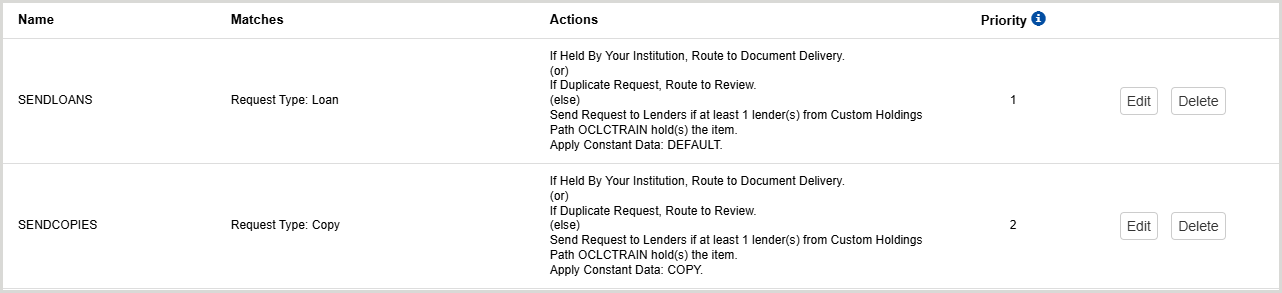
- PRESTITI:
se la richiesta non è un duplicato e non è posseduta dal proprio istituto, il sistema applica il record Dati costanti e crea una stringa prestatore basata sulle biblioteche posseduti nel Percorso posseduto personalizzato e instrada la richiesta alla revisione.
- In Corrispondenze, seleziona Tipo di richiesta > Prestito.
- Fare clic sull'opzione
 Aggiungi un'eccezione e selezionare Se richiesta duplicata, inoltra alla revisione.
- Fare clic sull'opzione Aggiungi un'eccezione e selezionare Se posseduto dalla mia istituzione, Instradare alla consegna del documento.
- Under Actions, select Send Request to Lenders and select the Custom Holdings Path to use.
- An approved patron must be linked to the request in order for the automation to send the request to lenders. If no patron has been linked to the request, or the linked patron is not approved or blocked, the request will be sent to the Review queue.
- Fare clic sull'opzione Aggiungi un'azione e selezionare Applica dati costanti , quindi selezionare il record di dati costanti da utilizzare.
- COPIE:
Se la richiesta non è un duplicato e non è posseduta dal proprio istituto, il sistema applica il record Dati costanti e crea una stringa prestatore basata sulle biblioteche posseduti nel Percorso posseduti personalizzato e instrada la richiesta alla revisione.
- In Corrispondenze, selezionare Tipo di richiesta > Copia.
- Click the Add an Exception option and select If Duplicate Request, Route to Review.
- Fare clic sull'opzione Aggiungi un'eccezione e selezionare Se posseduto dalla mia istituzione, Instradare alla consegna del documento.
- Under Actions, select Send Request to Lenders and select the Custom Holdings Path to use.
- An approved patron must be linked to the request in order for the automation to send the request to lenders. If no patron has been linked to the request, or the linked patron is not approved or blocked, the request will be sent to the Review queue.
- Fare clic sull'opzione Aggiungi un'azione e selezionare Applica dati costanti , quindi selezionare il record di dati costanti da utilizzare.
Advanced borrowing automations
I seguenti sono esempi di come espandere le automazioni.
Esempi
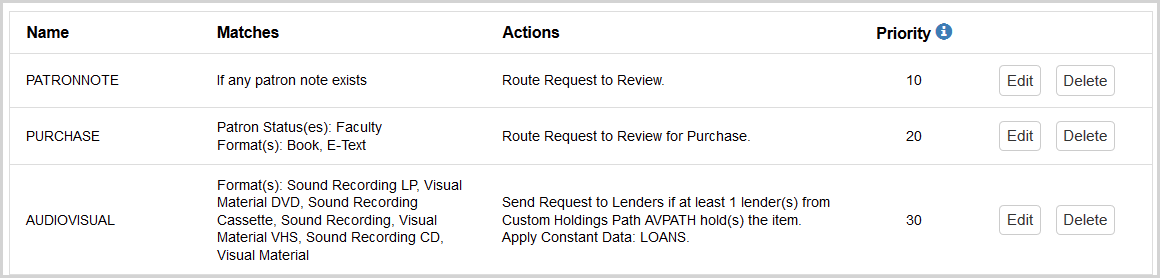
- NOTA LETTORE
Tutte le richieste che hanno una nota dell'utente non verranno inviate ai prestatori, consentendo al personale di leggere la nota dell'utente e soddisfare la richiesta di conseguenza.
- In Corrispondenze, seleziona Nota lettore. Selezionare la casella Qualsiasi parola per recuperare le richieste che hanno una nota dell'utente.
- In Azioni, selezionare Instradare richiesta alla revisione.
- ACQUISTO
Books and eBooks requested by faculty will be routed to review for purchase.
- Under Matches, select Patron Status > Faculty.
- Seleziona Aggiungi una corrispondenza e seleziona Formati. Selezionare Libro e E-Text dall'elenco disponibile.
- In Azioni, selezionare Instradare richiesta alla revisione per l'acquisto.
- AUDIOVISIVO
Qualsiasi richiesta corrispondente ai formati specifici verrà inviata a un gruppo specifico di prestatori configurati come Gruppo di posseduto personalizzato noti per soddisfare le richieste audiovisive per un costo e un periodo di prestito ragionevoli.
- In Corrispondenze, seleziona Formati e scegli LP registrazione sonora, DVD di materiale visivo, Cassetta di registrazione sonora, Registrazione sonora, VHS di materiale visivo, CD di registrazione sonora e Materiale visivo. È possibile selezionare più formati dall'elenco disponibili.
- In Azioni, selezionare Crea stringa prestatore e selezionare il percorso di posseduto personalizzato da utilizzare per inviare a prestatori noti per soddisfare questo tipo di richieste.
- Select Add an Action and select Apply Constant Data and select the Constant Data record to use.
Prestito
Using the Automated Request Manager, lenders can choose to apply designated constant data records to lending requests based on the identity of the borrowing library, the type of request, or the material format being requested. This ensures that lending charges, notes, policies, and addresses are accurately applied to lending requests, saving staff time and ensuring compliance with local policies and preferences.
- Le automazioni vengono applicate in base all'impostazione della Priorità automazione . Una richiesta generata dall'utente viene confrontata con tutte le automazioni. Di tutte le automazioni che corrispondono alla richiesta, alla richiesta verrà applicata quella con la priorità più alta o con il numero di priorità di automazione assegnato più basso.
- Ogni automazione deve avere un valore numerico univoco per Priorità automazione.
- Assign the highest Priority (lowest number) to your most specific automations.
- Se non si seleziona un criterio di corrispondenza, l'automazione verrà applicata a tutte le richieste.
Azioni standard per il prestito
At the top of the screen is a list of the standard actions the system automatically performs on new lending requests. All libraries will see the actions on the left of the screen:
- Deviazioni
- Supplier status check
- Verifica posseduti nella Knowledge base
- Verifica affiliazioni al gruppo
- È ora di rispondere
- Verifica disponibilità in tempo reale
Configurare le automazioni principali per il prestito
Per aggiungere un'automazione:
- Selezionare la scheda Prestito.
- Fare clic su + Aggiungi nuovo.
- La casella Abilita sarà selezionata per impostazione predefinita e l'automazione sarà immediatamente attiva al momento del salvataggio. L'automazione visualizzerà Sì nella colonna Abilitato .
- Enter a Name and assign a Priority. See Main Automation fields for Lending fields for more information.
- Select any desired match criteria from the Matches drop-down menu. See Automation Match criteria for Lending for more information.
- Fare clic sul pulsante Aggiungi una corrispondenza per configurare ulteriori criteri di corrispondenza.
- Fare clic sul pulsante
- Select any desired actions from the Actions drop-down menu. See Automation Actions for Lending for more information.
- Le automazioni che specificano azioni ma nessun criterio di corrispondenza corrisponderanno a tutte le richieste.
- Click the Add an Action button to configure additional match criteria.
- Fare clic su Salva.
Per modificare un'automazione:
- Dall'elenco Automazioni principali, selezionare il pulsante Modifica associato all'automazione desiderata.
- Modificare le informazioni, come appropriato. Rimuovere corrispondenze, azioni ed eccezioni con il pulsante Rimuovi .
- Fare clic su Salva.
Per eliminare un'automazione:
- Dall'elenco Automazioni principali, selezionare il pulsante Elimina accanto all'automazione desiderata.
- Nella finestra di conferma, fare clic su Elimina.
Campi principali di automazione per il prestito
Criteri di corrispondenza per l'automazione in prestito
| Campo | Descrizione |
|---|---|
| Gruppo prestatario |
|
| Formati | |
| Tipo di richiesta |
Specificare le richieste di copia o di prestito:
Se non viene selezionato alcun tipo di richiesta, l'automazione verrà applicata sia alle richieste di copia che a quelle di prestito. |
Azioni di automazione per il prestito
| Campo | Descrizione |
|---|---|
| Applica dati costanti | Applicare un record Dati costanti prestatore designato come azione. |
Use lending automations with WorldShare ILL
Fare riferimento a Automated Request Manager for Lending per casi d'uso ed esempi.
Utilizzare i report per valutare le automazioni
Refer to Assess automations to learn how to access and use the Borrower Resource Sharing and Lender Resource Sharing Stats Reports to track your library's use of automation.