
WorldShare Reports in Power BI release notes, January 2025
Release Date: 30 January 2025
Introduzione
This release of WorldShare Reports provides new features and enhancements. These features will help you manage more complex workflows, including:
- Utilize the new Microsoft Power BI reporting platform for WMS and Tipasa
- View new standard Circulation reports built on the Microsoft Power BI platform
- View new standard Patron user reports built on the Microsoft Power BI platform
- View a new standard LHR report built on the Microsoft Power BI platform
- Utilize powerful bookmarking and favoriting features
- View new circulation event type for loans that transition to long overdue
Nuove funzionalità e miglioramenti
Utilize the new Microsoft Power BI reporting platform within WMS
Schermata Tutti i report
The All reports screen opens after you click Reports / Visualizations tab in the left navigation. This screen contains a customizable reports table from which you can launch standard reports. The image below is an example of this screen.
You can click the Show Sidebar button ( ) to hide or show the left navigation for the Analytics module. Hiding the sidebar expands the reports screen and enhances the report visuals. By default, the sidebar is shown.

1. Cerca
Utilizzare il campo di testo Cerca per trovare un report specifico. Questo è un campo di testo con filtro automatico. Il filtraggio dei report inizia dopo la prima pressione di un tasto nel campo di testo.
Queries entered in the Search text field search across all available columns in the reports table (even hidden columns).
2. Personalizzare la visualizzazione tabella
Utilizzare i pulsanti Personalizza visualizzazione tabella per modificare la tabella Tutti i report. Tutte le modifiche apportate alla tabella rimarranno nelle sessioni future fino a quando non verranno ripristinate le impostazioni predefinite della tabella o verranno apportate ulteriori modifiche.
| Azione | Pulsante | Descrizione |
|---|---|---|
| Mostra filtri |  |
Utilizzare il pulsante Mostra filtri per filtrare i report disponibili per colonna e valore. Per applicare un filtro:
Per rimuovere un filtro applicato:
|
| Mostra colonne |  |
Use the Show columns button to select and deselect the columns in the All reports table. By default, five columns are shown in the table. You can use drag and drop to rearrange the order of the columns in the reports table. To show a column:
Per nascondere una colonna:
Dalla finestra di dialogo Mostra colonne è anche possibile:
|
| Ripristina le impostazioni predefinite |  |
Utilizzare questo pulsante per ripristinare le impostazioni predefinite della tabella Tutti i report. |
 ) to remove a single filter from the table.
3. Righe
Il numero di righe per pagina e i pulsanti di navigazione nella pagina vengono visualizzati nella parte superiore e inferiore della tabella dei report.
- Selezionare un numero dall'elenco a discesa Righe per modificare il numero di righe visualizzate per pagina. Le opzioni includono:
- 20 (default)
- 40
- 60
- If there is more than one results page, use the navigation buttons to move between pages. Options include:
- |< - Click to return to the first page of results
- < - Click to go back one page
- > - Click to move forward one page
- >| - Click to move to the last page of results
Eseguire un report standard
- In the left navigation, click Reports / Visualizations. The All reports screen opens.
- Click the name of the report you wish to run in the Title column. The report will open on the same screen.
- Click All Reports to return to the All reports screen.
Filtra un report standard
Per impostazione predefinita, a tutti i report standard sono applicati uno o più filtri e il riquadro dei filtri è nascosto. È possibile applicare un filtro di base o avanzato a un oggetto visivo del report.
Basic filtering
- From the open standard report, click Filters to expand the filter pane.
- Click the Expand or collapse filter card button (
 ) for the filter you'd like to adjust.
 - Select the filter value(s) you want to include or deselect the filter values you wish to exclude from the list of filter values. Your selections or deselections are automatically applied to the report visual(s).
Advanced filtering
- From the open standard report, click Filters to expand the filter pane.
- Click the Expand or collapse filter card button () for the filter you'd like to adjust.
- Select Advanced filtering from the Filter type drop-down menu.
- Select an operator from the Show items when the value drop-down list.
- Enter a value in the text field below the operator drop-down list.
- (Optional) Add a second value to your advanced filter.
- Selezionare un operatore booleano.
- And (default)
- Oppure
- Select an operator from the drop-down list.
- Enter a value in the text field below the operator drop-down list.
- Selezionare un operatore booleano.
- Click Apply filter to apply the advanced filter to the report visual.
Schermata report standard
After execution, every standard report page contains five key areas.

1. Navigazione
The navigation contains an All Reports link, which returns you to the All reports screen and the title of the currently open report.
2. Preferito
È possibile aggiungere o rimuovere un report dai preferiti dalla schermata dei report standard facendo clic sull'asterisco.
- Favorited reports have a solid star (
 ) and appear at the top of the All reports table.
 - I report eliminati dai preferiti hanno il profilo di una stella (
 ).
).
3. Barra degli strumenti Report
Oltre a visualizzare la data dell'ultimo aggiornamento dei dati, la barra degli strumenti del report contiene quanto segue:
| Item | Formato | Descrizione |
|---|---|---|
| File | Menu | Il menu File consente di:
|
| Segnalibri | Menu | The Bookmarks menu allows you to bookmark a view of the report. |
| Ripristina le impostazioni predefinite | Pulsante | After adjusting the filters, click the Reset to default button to reset the report to its default settings. |
4. Oggetti visivi del report
Each standard report contains one or more visuals. When you hover over a visual, a menu with one or more buttons will appear.
Filtri e filtri dei dati relativi a questo pulsante visivo
Click the Filters and slicers affecting this visual button ( ) to view the filters and slicers generating the visual. The filters and slicers listed in the dialog are not editable.
Pulsante modalità messa a fuoco
Click the Focus mode button ( ) to view and interact with the visual on its own screen. The Filters and slicers affecting this visual, and More options buttons appear on this screen.
Click Back to report above the isolated visual to return to the report screen.
Pulsante Altre opzioni
Click the More options button ( ) to view the More options pop-up menu. One or more of the following options appear in the pop-up menu, depending on the visual you've selected.
- Export data - Click to export data from the visual.
- Show as a table - Click to present the visual data in a table.
- Se selezionato, l'oggetto visivo e la tabella verranno visualizzati insieme su una nuova schermata.
- Click Back to report above the visual to return to the report screen.
- Spotlight - Click to highlight the visual, which causes the other visuals in the report to fade to near transparency.
- Get insights - Do not use.
- Sort axis - Hover over this option to view the default filter and sort affecting this visual.
- Il filtro predefinito o l'affettatrice dei dati avranno un segno di spunta prima di esso. Fare clic su un filtro o una selezione dei dati diversi per modificare l'oggetto visivo.
- Il metodo di ordinamento predefinito avrà un segno di spunta prima di esso. Fare clic su un metodo di ordinamento diverso per modificare l'oggetto visivo.
5. Filtri di report
Esporta un report standard
È possibile esportare un report standard dal menu File sulla workstation locale come file PDF, PowerPoint (PPT) o PNG.
Note: Exporting a standard report from the File menu results in an export snapshot of the report visual(s) as they appear on your screen only. You must export data from the individual report visual(s) to view all report data in that visual.
- Click File > Export. and then select one of the following export formats.
- Selezionare un tipo di file di esportazione dal menu a comparsa.
- PowerPoint (PPT)
- PNG
- Il download del file inizierà automaticamente sulla workstation.
Esportare i dati del report da un oggetto visivo del report
È possibile esportare i dati del report da ogni oggetto visivo nel report.
- Hover over a visual and click the More options button ().
- Click Export data in the pop-up menu. The Which data do you want to export? dialog.
- Dalla finestra di dialogo:
- Select one of the following export formats if you export data from a tab or matrix visual.
- Data with current layout - Exports data as a plain table with no styling or filters.
- Summarized data - Exports data as a table with filters enabled for each column and alternating colored rows.
- Selezionare un formato file dall'elenco a discesa se si stanno esportando i dati come Dati di riepilogo.
- .xlsx (Excel 150,000-row max) (default)
- .csv (30.000 righe max)
- Click Export. The file automatically downloads to your workstation.
- Select one of the following export formats if you export data from a tab or matrix visual.
- (Optional) Repeat steps 1-3 for each additional visual in the report.
Stampa un report standard
È possibile stampare un report esportandolo in un file PDF .
- From the open report, click File > Print. The Print dialog opens.
- Impostare le opzioni di stampa nella finestra di dialogo Stampa.
- Click Print. The report will automatically begin downloading as a PDF file to your workstation.
- Aprire la cartella Download della propria workstation per recuperare e stampare il report.
View new standard Circulation reports built on the Microsoft Power BI platform
Dettaglio eventi circolazione
Il dettaglio degli eventi di circolazione elenca le transazioni degli eventi di circolazione in un intervallo di date specificato. Per impostazione predefinita, questo report visualizza i dati per tutti i tipi di eventi di circolazione per gli ultimi 30 giorni. Questo report può analizzare le transazioni di circolazione dettagliate per data, politica di prestito, numero di chiamata, formato del materiale o categoria del destinatario del prestito.
This new version of the report adds the following columns:
- Nome sede per il ritiro dell'evento
- Posizione sede per il ritiro dell'evento
- Origine transazione evento

Pagamenti giornalieri
Il report pagamenti giornalieri visualizza i dettagli dei pagamenti per sede e metodo di pagamento con un intervallo di date specificato. L'intervallo di date predefinito è un giorno indietro. Fornisce un'immagine per il numero di pagamenti, l'importo pagato dalla sede e il metodo di pagamento. C'è anche un elenco di pagamenti ricevuti durante l'intervallo di date selezionato. È possibile utilizzare questo report per riconciliare un cassetto di circolazione.

Titoli di circolazione ad alto utilizzo
Il report Titoli circolazione ad alto utilizzo elenca i titoli identificati come ad alto utilizzo (in base all'attività di circolazione, come prestiti, rinnovi e prenotazioni) entro un intervallo di date specificato. Per impostazione predefinita, l'intervallo corrisponde agli ultimi sei mesi di attività. Fornisce dettagli sul titolo di un elemento, il numero OCLC e il conteggio delle attività classificate. È possibile utilizzare questo report per determinare gli articoli più popolari del proprio istituto.

Attività di circolazione media oraria
The Hourly Average Circulation Activity report displays a chart of average circulation activity by hour within a specified date range for selected branch(es) for the selected day(s). The default date range is the last six months of activity. This chart is interactive, and after you select or deselect event types, the chart regenerates. You can use this chart to display busy and slow times at the circulation desk and provide decision support on staffing levels needed.
This report also allows you to "Personalize this visual", to select which metrics you want to use to evaluate hourly activity at your branches. For example, you may want to include bills paid, bills created, etc., in your activity. Hover over the visual and click the "Personalize this visual" button ( )
) to activate the option.

This report also allows you to "Personalize this visual" by selecting which metrics you want to use to evaluate hourly activity at your branches. For example, you may want to include bills paid, bills created, etc., in your activity. Hover over the visual and click the "Personalize this visual" button () to activate the option. Click the + option to add report objects to your visual. To remove any report objects, click the three dots to "Remove field".

Statistiche mensili sulla circolazione
The Monthly Circulation Statistics report displays circulation statistics for items checked out, hold item consultations, items soft checked out, and circulation statistics total. You can view these events by year and month, material format, borrower category, permanent shelving location, and temporary shelving location. New to this report is the available reporting by call number classification. The default date range is the last 12 calendar months. It provides details at the month and year level. You can use this report to count items checked out, soft checked out, and item consulted.

View new standard patron user reports built on the Microsoft Power BI platform
Riepilogo conteggi utenti
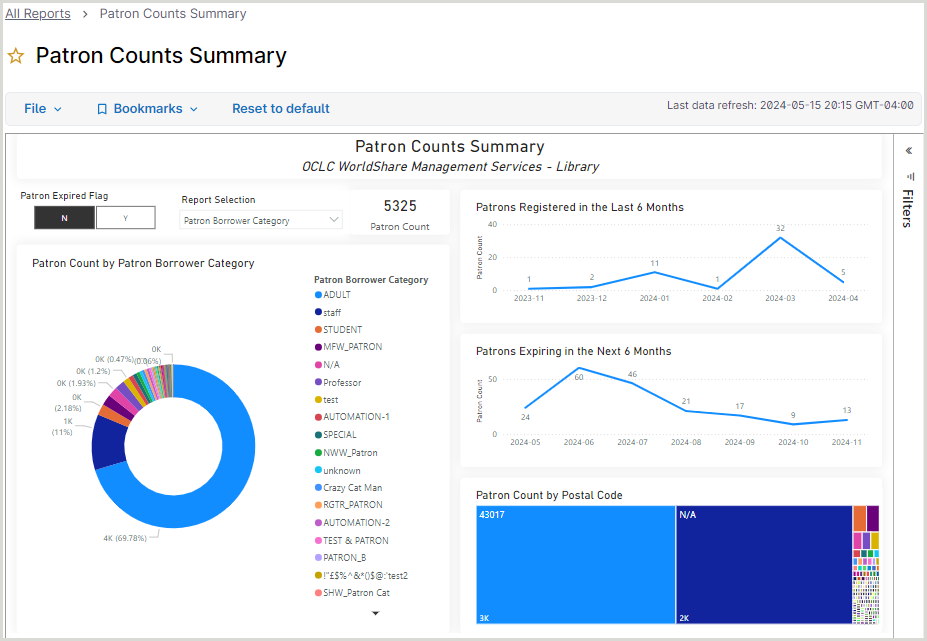
Il report Riepilogo conteggi utenti visualizza i conteggi degli utenti per sede, categoria personalizzata (ad es., anno di corso, categoria), categoria del destinatario del prestito e codice postale (codice postale). Fornisce informazioni sul numero di destinatari del prestito o di utenti di categorie personalizzate. È possibile utilizzare questo report per verificare il caricamento di un utente o analizzare la distribuzione dei prestatari registrati per categoria. Inoltre, vengono fornite immagini per i conteggi degli utenti registrati di recente e prossimi alla scadenza.
Dettagli informazioni utente
The Patron Information Detail Report lists detailed information that includes many data fields in the patron record. You can use this report for data cleanup (e.g. finding patrons with missing borrower category or home branch), projects, and troubleshooting.
This new report version adds Patron Public Notes and Patron Staff Notes columns.

View a new standard LHR report built on the Microsoft Power BI platform
LHR codici a barre duplicati
Il report LHR duplicati visualizza quando un singolo valore di codice a barre è stato utilizzato in più item LHR per aiutare la biblioteca a ripulire i dati LHR e circolazione. I KPI vengono forniti per una rapida panoramica del conteggio dei codici a barre duplicati e del numero di gruppi di codici a barre duplicati.

Aggiungere un report standard ai preferiti
È possibile aggiungere un report ai preferiti dopo aver regolato i filtri del report. Aggiungere il report ai preferiti consente di rivisitare una particolare visualizzazione senza reimpostare i filtri.
Each standard report has a preset default Standard bookmark, which correlates to the report's default settings. You can set a bookmark you created as the default so that you always see that report view when you open the report in subsequent sessions.
Aggiungere un segnalibro a un report standard
- From the open report, click Bookmarks > Add bookmark.
- Enter a name for the bookmark in the Bookmark name text field.
- (Optional) Select the Make Default checkbox to make this the default view when you open the report.
- Click Save to save the bookmark.

Modifica un segnalibro esistente in un report standard
È possibile modificare il segnalibro predefinito o rinominare un segnalibro esistente nel menu Segnalibri.
Cambia il segnalibro predefinito
- From the open report, click Bookmarks.
- Locate the bookmark you want to make the default and click the More options button (
 ).
). - Click Make default. The bookmark now has a default icon next to it, and a confirmation message appears stating Default Bookmark Changed.
Rinomina un segnalibro
Note: The Standard bookmark cannot be renamed.
- From the open report, click Bookmarks.
- Locate the bookmark you want to rename and click the More options button ().
- Click Rename and enter a new name in the text field.
- Click Save. The bookmark name changes, and a confirmation message appears stating Bookmark Renamed.
Elimina un segnalibro da un report standard
Note: The Standard bookmark cannot be deleted. If you delete one of your own custom bookmarks that is set as your default, the Standard bookmark will then become your new default.
- From the open report, click Bookmarks.
- Locate the bookmark you want to delete and click the More options button ().
- Click Delete and then click the Delete button in the Bookmarks menu. The bookmark is deleted, and a confirmation message appears stating Bookmark Deleted.
View new circulation event type
Starting 19 January 2025, you can view a new circulation event type named Transition-to-Long-Overdue. This audit event is written when the Circulation application transitions a loan to long overdue. This new event type will be viewable in both the existing BusinessObjects Circulation Events reports and universe and the new Power BI report Circulation Events Detail.

Problemi noti
- N/A
Collegamenti importanti
Sessioni successive al rilascio
An Office Hours session is scheduled to help you familiarize yourself with the new features and enhancements included in this release. Please note the session time zones when registering. The session will be recorded and archived for future viewing on the OCLC Community Center. Even if you cannot attend, please register to receive a link to the recorded session.
WorldShare Report Office Hours
Date: Tuesday, 25 February 2025, 11:00 am, Eastern Standard Time (New York, GMT-05:00)
Registration: https://community.oclc.org/t5/worlds...ec-p/56348#M47
Siti web di supporto
Le informazioni di supporto per questo prodotto e i prodotti correlati sono disponibili all'indirizzo: