Article Galaxy from Research Solutions
Libraries using Article Galaxy from Research Solutions can integrate this feature with Tipasa. Using Research Solutions in Tipasa allows you to:
- Compare the cost of buying an article from the Research Solutions service to other vendors.
- Purchase the article directly from Research Solutions Article Galaxy while on the Tipasa request screen.
- Have Research Solutions deliver the purchased article via Article Exchange.
- Auto-receive all articles delivered by Research Solutions using Article Exchange to then be directly forwarded to the patron without need for staff intervention.
Impostazione della configurazione del servizio OCLC
If you have an existing Research Solutions account, contact Research Solutions to sign up to use the new Tipasa and Article Galaxy service. They will supply you with new credentials specifically for use with this service.
Once you have the new account set up with Research Solutions, follow the instructions below to configure the Research Solutions option in Tipasa.
- Passare alla configurazione del servizio OCLC.
- Selezionare WorldShare ILL > Opzioni di acquisto
- In Article Galaxy, inserire le informazioni nei campi seguenti:
Campo Descrizione ID account Enter the account ID supplied by Research Solutions. Password Immettere la password per l'account. Indirizzo e-mail di notifica Enter an email address that is used by Research Solutions to send transaction status updates to the requesting library. Ricevere automaticamente richieste di acquisto soddisfatte con Article Exchange Select On if you would like all Research Solutions articles to be automatically received in Tipasa and be forwarded to the patron through Article Exchange and without staff intervention. -
Fare clic su Salva.
Purchase documents from the Research Solutions
If the Research Solutions Purchase Option has been configured in the OCLC Service Configuration, then the Tipasa ILL request form will include Article Galaxy options in the Purchase tab and Purchase Options section of the requests.
The Article Galaxy price will appear if the requested article is available for purchase from Research Solutions. The price shown will be the actual price charged by Research Solutions for this article.
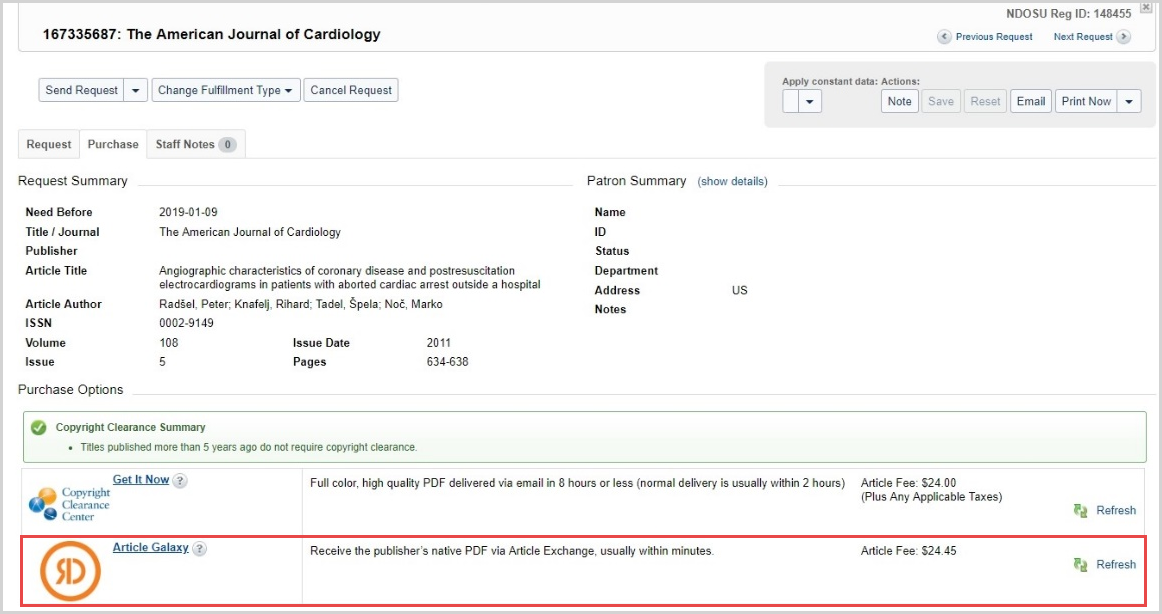
To purchase the document from Research Solutions:
- Nella barra di navigazione a sinistra, fare clic su Richieste di prestito.
- Aprire una categoria di richiesta —Nuova per revisione, Non revisionata o Revisionata— facendo clic sul collegamento. Verrà visualizzato l'elenco delle richieste di prestito.
- Aprire una richiesta per un articolo facendo clic sul numero ID o sul titolo dell'articolo. I dettagli della richiesta si espandono.
- Scorri verso il basso e fai clic sull'elenco a discesa Copyright. Selezionare Altro e scegliere CCL: Conforme alla legge sul copyright degli Stati Uniti o Nessuna come conformità al copyright, in base alle preferenze della biblioteca.
- Fare clic sulla scheda Acquisto per visualizzare un Riepilogo richieste e un Riepilogo utente, nonché le opzioni di acquisto. Le informazioni sulla disponibilità e sul prezzo dell'articolo sono disponibili qui tramite Article Galaxy.
- Nella sezione Opzioni di acquisto, fare clic sul collegamento Article Galaxy se l'articolo è disponibile.
- A Purchase Order Summary dialog box appears containing the vendor name and previewed price.
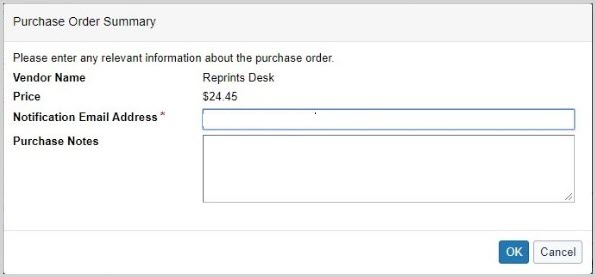
- Confermare l'indirizzo e-mail di notifica preconfigurato.
- Facoltativo. Immettere una nota di acquisto.
- Click OK to send a purchase request message to the Research Solutions.
- La richiesta di acquisto verrà spostata nella coda Richieste di acquisto > In ordine.
Nota: se l'acquisto non va a buon fine, il messaggio di stato includerà un messaggio di errore e la richiesta non verrà aggiornata.
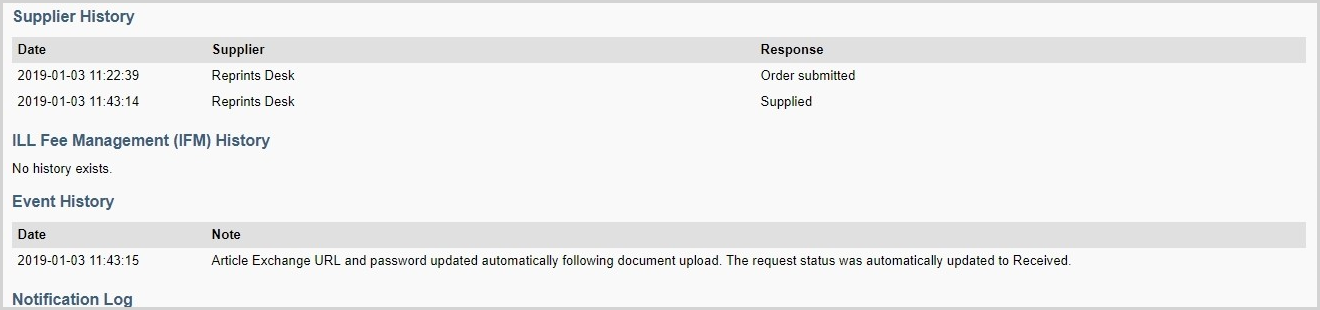
Lo stato della richiesta di acquisto verrà visualizzato nella sezione Storico fornitore dei dettagli della richiesta.
Rivedi le richieste degli ordini
Research Solutions purchase Orders display the following information:
- Tipo di funzionalità
- Data ordine
- Nome del fornitore
- Numero ordine
- Prezzo
- Note di acquisto
Item delivered from Research Solutions to Article Exchange
Una volta che l'articolo è stato consegnato tramite Article Exchange, la richiesta di acquisto verrà spostata nella coda Richieste di acquisto > Consegnato. Il personale può quindi visualizzare l'anteprima dell'articolo e selezionare Segna come ricevuto. L'articolo è quindi visibile in Il mio account dell'utente.
Se è stata selezionata l'opzione per ricevere automaticamente la richiesta di acquisto evasa con Article Exchange nella configurazione del servizio OCLC, la richiesta verrà automaticamente aggiornata come Ricevuta, lo stato verrà aggiornato come Chiusa e l'utente sarà in grado di visualizzare l'articolo in Il mio account.
Lo storico delle richieste mostrerà quando l'articolo è stato consegnato e se è stato ricevuto automaticamente o meno.