Creare e modificare le richieste
Select whether you are using the Legacy interface or the Modernized interface in Tipasa.
Crea richiesta (da un modulo di lavoro vuoto)
You may search for items using Discover Items and create requests by using the Create Request heading. Clicking Create Request produces a blank form.
To create a request:
- Type the details of your request in the fields provided.
- (Optional). To locate citation information, search for Article Title or Title using the "Search Google Scholar", "Search Google Books", or "Search Google" links located to the right of these fields.
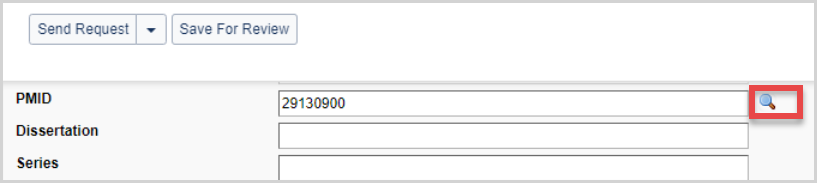
- (Facoltativo). Immettere un PMID e utilizzare la lente d'ingrandimento per recuperare informazioni sulla citazione da PubMed. Se le informazioni della citazione sono corrette, selezionare Applica e salva per applicare le informazioni della citazione PubMed alla richiesta.
- Choose the request Type and Format.
- Provide a Needed By: date.
- Apply your constant data record.
- Provide a lender in the Lender String.
- Click Send Request. A confirmation message appears and the request appears under the category Borrowing Requests > New For Review.
- Click Borrowing Requests from the left navigation bar. The list of Borrowing categories expands.
- Click New For Review.
- Click your new request ID number.
- In the new request screen, click Send Request. A confirmation message appears.
- Choose either View Next Request or Return to list. Your request is sent to the lender and you are returned to the screen you selected.
Create borrowing requests using Discover Items
You can search for items and create a request under Discover Items.

To discover items and create requests:
- Fare clic su Trova elementi nel menu di navigazione a sinistra. Quando si apre la scheda Rileva elementi, viene visualizzato anche un modulo di ricerca avanzata nel pannello principale della schermata. Per ulteriori informazioni su questa funzione, vedere Ricerca avanzata.
- For a basic search, choose where you would like to search and the type of search from the drop-down lists at the top of the tab.
- Type your search terms in the box provided.
- Fare clic su Cerca. Vengono visualizzati i risultati corrispondenti, insieme alle opzioni di visualizzazione dei posseduti. Quando si fa clic su Cerca, il modulo di ricerca avanzata si comprime nella parte superiore della schermata. Fare clic su Ricerca avanzata per espandere o comprimere il modulo.
- On the Results screen, you may search or view items using one of the following options:
- Passare il cursore del mouse sull'icona delle informazioni (
 ) accanto al titolo per visualizzare brevi dati bibliografici.
 - If available, click the View Now link for open access resources. The resource will open in a new window.
- Cerca le versioni con lo stesso titolo e autore facendo clic sul collegamento. Verrà avviata una nuova ricerca basata su titolo e autore.
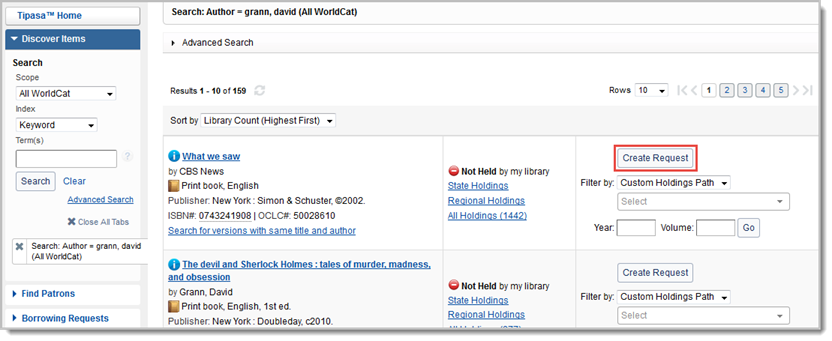
- Per inviare una nuova richiesta, fare clic su Crea richiesta. Viene visualizzato il modulo di lavoro della richiesta.
- Passare il cursore del mouse sull'icona delle informazioni (
- To display holdings, use one of the following options:
- Fare clic su Posseduto statale, Posseduto regionale o Tutto il posseduto
Regional Holdings includes all holdings in contiguous states.
- To display holdings from a Custom Holdings Path or Profiled Group, select that option from the Filter by drop-down list. Click Go to see results based on the selected filters.

Per ulteriori informazioni, vedere la schermata Posseduti.
- Fare clic su Posseduto statale, Posseduto regionale o Tutto il posseduto
- Utilizzare la schermata Posseduto per visualizzare le informazioni sull'elemento richiesto e le informazioni sui prestatori disponibili. Per ulteriori informazioni, vedere la schermata Posseduti. Fare clic su Sì (o in un punto qualsiasi della casella Sì) per aggiungere un fornitore alla stringa prestatore.
- Fare clic su Crea richiesta. Viene visualizzato il modulo di lavoro della richiesta.
- By clicking on the drop-down button next to Invia richiesta, è possibile scegliere di inviare richiesta o, se sono state configurate automazioni, inviare ad automazione. L'invio ad automazione consente di inviare una richiesta senza selezionare i prestatori nella schermata dei posseduti o applicare dati costanti, a condizione che l'automazione sia impostata per produrre la richiesta. Stato utente e/o Dipartimento utente devono essere inclusi se si sta cercando una corrispondenza sui dati dell'utente nell'automazione. Le richieste inviate all'automazione sono disponibili nella coda Automazione prodotta.
- If the automation is set to Build Lender String or Send Request to Lenders, lenders in each Custom Holdings Group in the automation's specified Custom Holdings Path are sorted by turnaround time before being added to the lender string. Requests for articles from print serials will automatically exclude lenders who do not hold the year or volume of the requested item or who have a title-level deflection in the 008 of the LHR for the item. See Automated Request Manager for more information.
- Apply your constant data record in the Request work form using the Apply constant data drop-down list. Data in a field of a constant data record will always overwrite the value shown in the request; however, pre-existing patron data will not be overwritten. When a different Constant Data is applied to a record, the fields are briefly highlighted in green as a visual indicator of the change.
- Nel modulo di lavoro della richiesta, fornire una data Necessario prima (obbligatorio).
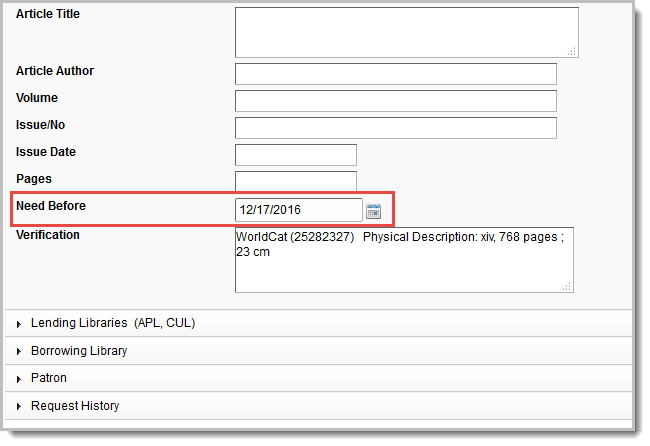
- Under Borrowing Library, the Address field is required for both Shipping and Billing.
- Under Lending Libraries, lender policies are listed for any lenders you chose on the Holdings screen. To add more lenders, type the institution symbol(s) of up to 15 of your preferred lender(s) in the Lender String field, separated by commas.
- Sotto l'utente verrà visualizzato un triangolo arancione con il messaggio utente non collegato. Aggiungere l'utente appropriato e collegarlo al suo account Tipasa per consentire all'utente di ricevere notifiche e-mail e tenere traccia della richiesta in Il mio account. Per ulteriori informazioni, vedere Collegare un utente alla richiesta.
- If applicable, direct notes and supplier history, including reasons for no, will appear under Request History after the request is sent.
-
Fare clic su Invia richiesta se la richiesta è completa. Viene visualizzato un messaggio di conferma e la richiesta appare sotto la categoria Richieste di prestito > Prodotte > In attesa di risposta. Se si desidera salvare la richiesta da inviare in futuro, fare clic su Salva per revisione.
-
Fare clic su Richiedi ID nel messaggio di conferma per cercare il numero ID della richiesta.
- The request is re-displayed.
Holdings screen
Display holdings
To display holdings, use one of the following options:
- Click State Holdings, Regional Holdings, or All Holdings.
- State Holdings: Holdings within your state displayed in alphabetical order by institution name.
- Regional Holdings: Holdings from states or provinces that border your state. Bodies of water are not considered when determining borders. Your institution's state or province is listed first, followed by other states or provinces in alphabetical order.
- All Holdings: Your institution's state or province is listed first, followed by other states or provinces in alphabetical order.
Note: A line separates holdings for each state and province. Within each state or province, holdings are listed alphabetically by institution name
- Per visualizzare i posseduti da un percorso di posseduto personalizzato o da un gruppo con profilo, selezionare l'opzione dall'elenco a discesa Filtra per. Fare clic su Vai per visualizzare i risultati in base ai filtri selezionati.
Holdings screen view
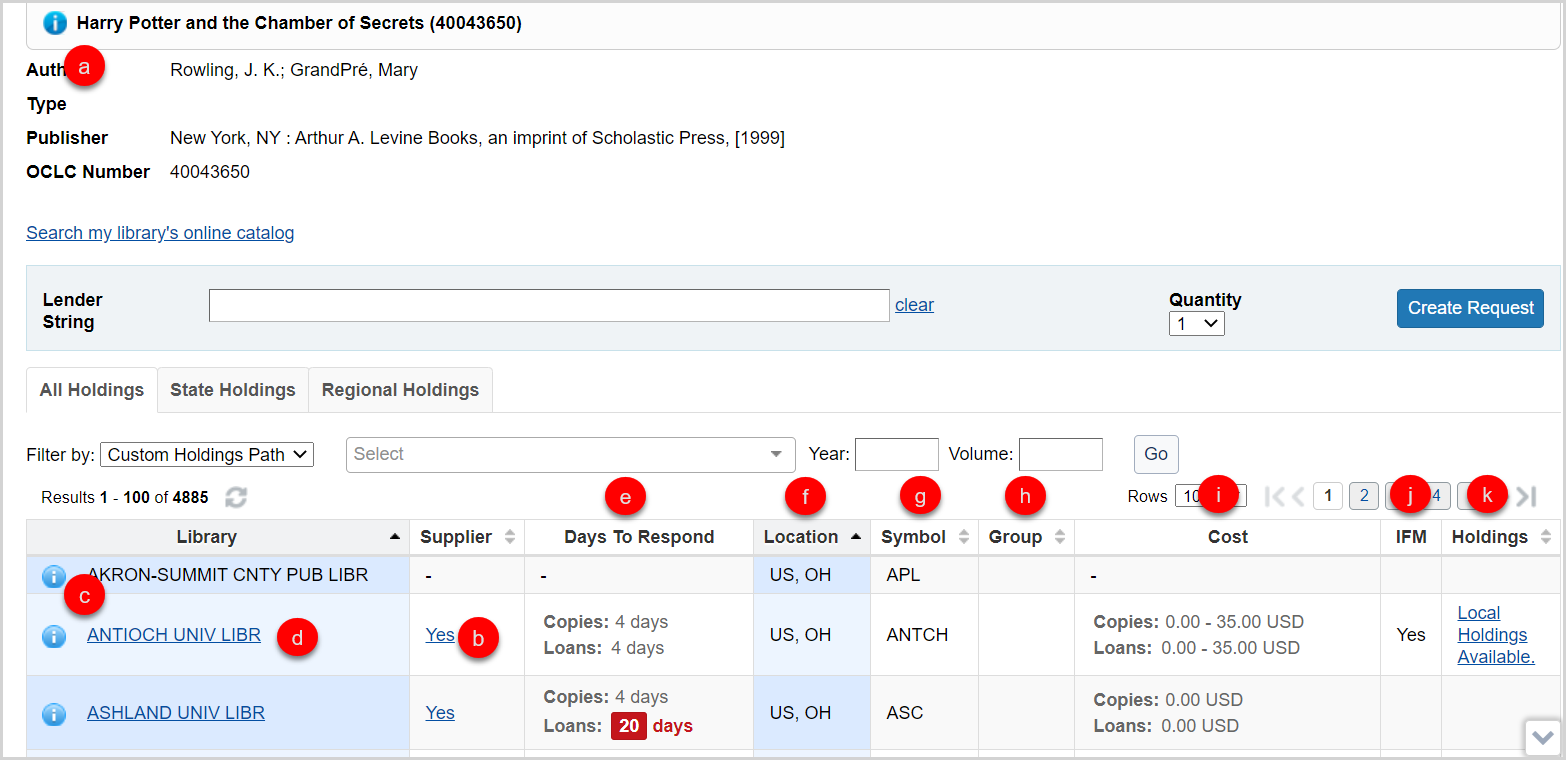
On the Holdings screen, you have several options:
- Hover your cursor over the information icon (
 ) next to the title of the requested item to see brief bibliographic data.
 - Click Yes (or anywhere in the Yes box) in the Supplier column to add a Supplier to your lender string.
- Once a lender has been added to the lender string, the hyperlink in the Supplier column will no longer be clickable. If a lender is removed from the lender string, your ability to click on Yes in the Supplier column is restored. This selection status will be maintained as you move through all holdings lists.
- Yes displays if the library is a current supplier. If they are not, a dash displays in the Supplier column.
- Click the information icon () next to the library’s name to go the OCLC Policies Directory and confirm a lender’s policies. The OCLC Policies Directory for the lender will open in a new window.
- Click the library name to go to the library’s online catalog.
- This link is maintained in the WorldCat registry. For information about configuring your OPAC to display to other libraries and provide deep links to a specific OCLC number or other identifiers, see WorldCat Registry, Configure links to your online catalog.
- The following must be entered in the Online Catalog section in order for the OPAC link to resolve: Online Catalog Direct to ISBN, Online Catalog Direct to ISSN, or Online Catalog Direct to OCLC Number.
- This link is maintained in the WorldCat registry. For information about configuring your OPAC to display to other libraries and provide deep links to a specific OCLC number or other identifiers, see WorldCat Registry, Configure links to your online catalog.
- View suppliers’ Days To Respond. The Days to Respond indicates the number o fdays the library needs to respond to copy and loan requests.
- If an item is Held by your library, you will see the
 icon at the top of the Holdings screen, indicating that your library has a holding set on that item in WorldCat. You will also see this icon on the top of the Request work form.
- If an item is Held by your library, you will see the
- View the suppliers Location, which displays abbreviations for the country, and state or provence.
- View the institution's OCLC Symbol.
- The Group column Group column populates when you filter by a Custom Holdings Path in order to show which of your Custom Holdings Groups contains a potential lender.
- La colonna Costo indica quanto addebitato dalla biblioteca per copie e prestiti immessi in OCLC Policies Directory.
- The IFM column will indicate Yes if the library participates in Interlibrary Loan Fee Management.
- View suppliers' Holdings information. This data is populated from the lending library's local holdings record or knowledge base holdings. If the information has been provided by the library, the column will display Local holdings available or a summary statement of specific volumes and issues held.
- Click on the text in the column to view additional holdings details.
- The resulting Holdings screen will list the Collection and Coverage for the knowledge base holding.
- Local Holdings Records will list the Format, Location, and Holding information.
- The coverage information displayed in the Holdings information sometimes comes from the embargo_info field of the KBART file in the WorldCat knowledge base. See Embargo and moving wall of coverage for more information.
The citation information for copy requests will display at the top of the Holdings screen and will remain as you scroll through potential lenders. Compare the lenders holding information in the Holdings column to the citation information of the copy request to be sure the lender has the exact volume needed to fulfill the request.
- Click on the text in the column to view additional holdings details.
Crea una richiesta da una richiesta esistente
È anche possibile creare richieste accedendo a una richiesta esistente con uno dei seguenti stati.
- Conditional
- Considerando
- Condizioni accettate
- Inviato
- Non ricevuto
- Completato
- Chiuso: Qualsiasi disposizione
- Non evasa
- Scaduto
Per creare una richiesta da una richiesta esistente:
- Fare clic su uno degli stati sopra elencati, nella home page del prestito interbibliotecario o sulla barra di navigazione a sinistra. Viene visualizzato un elenco di richieste con lo stato specificato.
Nota: le richieste con stato inviato o in esame sono disponibili nelle intestazioni In attesa di risposta e Automazione prodotta.
- Fare clic sull'ID richiesta dell'elemento che si desidera utilizzare per creare una richiesta. Verrà visualizzata la schermata dei dettagli della richiesta.
- Fare clic sul pulsante Nuovo nell'angolo in alto a destra della richiesta. Un nuovo modulo di richiesta aperto, precompilato con le informazioni della richiesta originale.
- Confermare che le informazioni corrispondano e apportare le modifiche necessarie.
- Fare clic su Salva per revisione. Nella parte superiore della pagina viene visualizzato un messaggio che informa che la richiesta è stata creata correttamente con un ID richiesta collegato a caldo.
Modifica richieste di prestito
In some cases, it is possible to edit requests once they have been submitted. Following are scenarios where editing is currently allowed.
Editing is not allowed on closed requests.
New For Review requests
Edit bibliographic data via WorldCat:
- Navigate to Borrowing Requests > New For Review.
- Click the request ID to open the request.
- Click the magnifying glass icon, next to the Title, Author or standard number fields, to search WorldCat via Discover items.
- Fare clic sul titolo dell'elemento, quindi su Applica dati nel record bibliografico. In alternativa, fare clic sul collegamento a un posseduto o utilizzare un percorso di posseduto personalizzato o un gruppo con profilo. Quindi fare clic su Aggiorna richiesta nella schermata Posseduti. Viene visualizzato un messaggio di conferma e la richiesta viene aggiornata.
Send items through Automation:
Note: Edition fields should be set before sending items through automation. Having edition information present when the item is sent through automation helps the system identify the best bibliographic match for the request. For more information on bibliographic matching and edition preference, see Setting edition preference on the request.
A condizione che le automazioni siano configurate, è possibile inviare richieste tramite l'automazione. Vedere Gestione richieste automatizzata. Questa opzione è disponibile per qualsiasi richiesta di prestito che non è stata ancora inviata ai prestatori.
- Navigate to Borrowing Requests > New For Review.
- Click the request ID to open the request.
- Fare clic sul pulsante a discesa accanto a Invia richiesta e scegliere Invia ad automazione. Se la richiesta è stata prodotta con l'automazione, verrà visualizzata nella coda Automazione prodotta. Se non viene prodotto, rimarrà nell'elenco per la revisione dello staff. È possibile controllare la cronologia delle richieste per vedere perché non è stato possibile produrla, apportare ulteriori modifiche e inviare di nuovo all'automazione se appropriato.
Add lenders based on holdings:
- Navigate to Borrowing Requests > New For Review.
- Click the request ID.
- Click the View Holdings link to open the Holdings screen.
- Click Yes in the Supplier column to add a lender. The lender is added to your Lender String.
- Click Update request.
Produced requests
You may edit a Produced request that has not yet shipped by a lender in the following queues:
- Awaiting Response
- Automation Produced
- Conditional
Collegare un lettore alla richiesta
Nel menu Utente, aggiungere l'utente appropriato e collegarsi al suo account Tipasa per consentire loro di ricevere notifiche e-mail e tenere traccia della richiesta in Il mio account.
Dalla richiesta di prestito:
- Sotto l'utente verrà visualizzato un triangolo arancione con il messaggio utente non collegato. Aggiungere l'utente appropriato e collegarlo al suo account Tipasa per consentire all'utente di ricevere notifiche e-mail e tenere traccia della richiesta in Il mio account.
- Immettere il nome dell'utente o l'ID lettore e utilizzare la lente di ingrandimento per cercare il record utente di Tipasa.
- Dopo aver identificato l'utente corretto, fare clic sul nome a cui è collegato.
- Fare clic sul pulsante Applica i dati dell'utente alla richiesta ILL. I dati dell'utente vengono applicati alla richiesta.

- I seguenti dati utente vengono applicati alla richiesta se sono disponibili nel record utente:
- ID lettore
- Nome
- Phone
- Indirizzo
- L'indirizzo verrà compilato solo se non è presente un numero di notifica SMS o un indirizzo di notifica e-mail nel record utente.
- Luogo di ritiro
Once the patron is linked to the request, a View Patron button appears, allowing you to inspect the patron record directly from the request.